
Avid Media Composer, Through OBS
Avid hands its picture to OBS Studio on the same computer over NDI, and OBS sends it to Pixelview. This is the most reliable way to stream from Avid without a capture device, and takes about 15 minutes to set up once.
If Avid feeds a monitor through a Blackmagic or AJA device, Pixelview Desktop with a capture device gives better quality. See Choose How to Stream.
1. Install the software
- Install OBS Studio.
- Close OBS, then install the NDI plugin for OBS (DistroAV) for your operating system.
- Install NDI Tools.
2. Send Avid's output to NDI
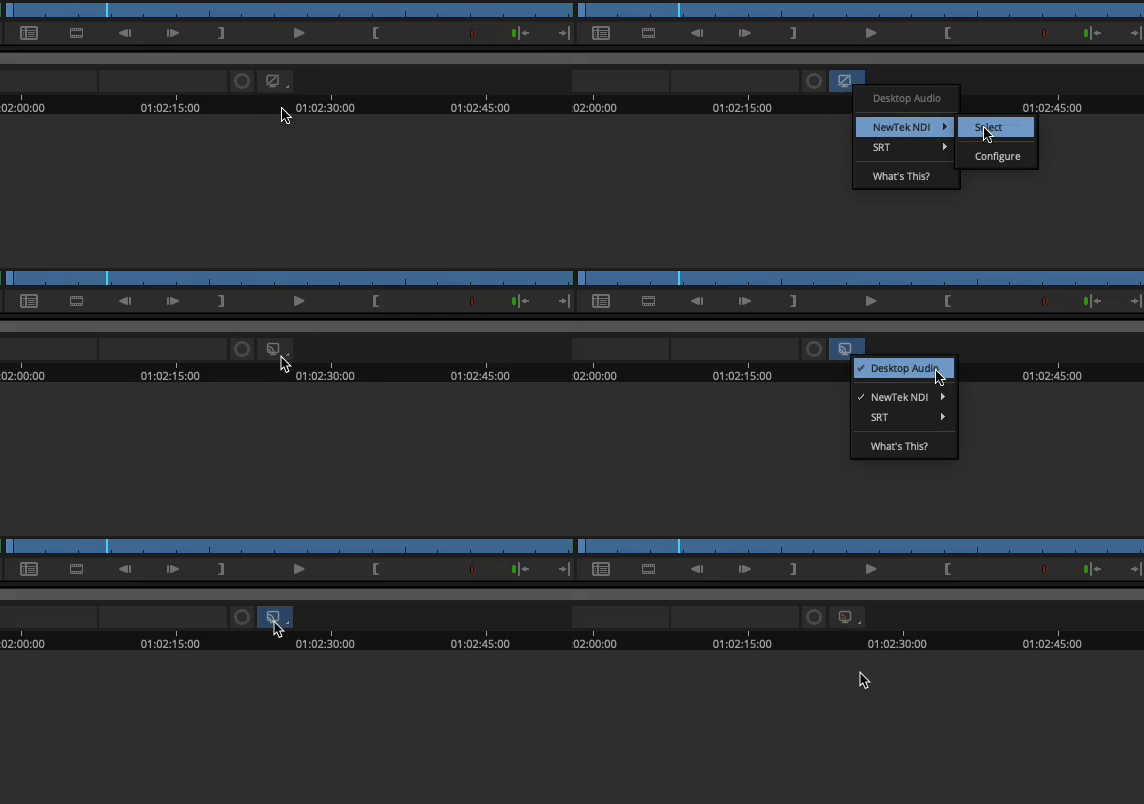
- Right-click the HW/SW button in the timeline and turn on NDI output and Desktop Audio.
- Click the HW/SW button so that it flashes red. Avid is now sending.
3. Receive it in OBS
Under Sources, click +, choose NDI Source, and select Avid as the source name.
4. Stream to Pixelview
- Follow Connect OBS to Pixelview to paste the Server and Bearer Token from Admin.
- Use the recommended quality values in OBS Studio Setup.
- Click Start Streaming and check the thumbnail in Admin.
- Open the viewer link to check picture and sound, then invite your viewers. See Watch in a Web Browser.
Need help? Email hello@pixelview.io.