
Pixelview Desktop
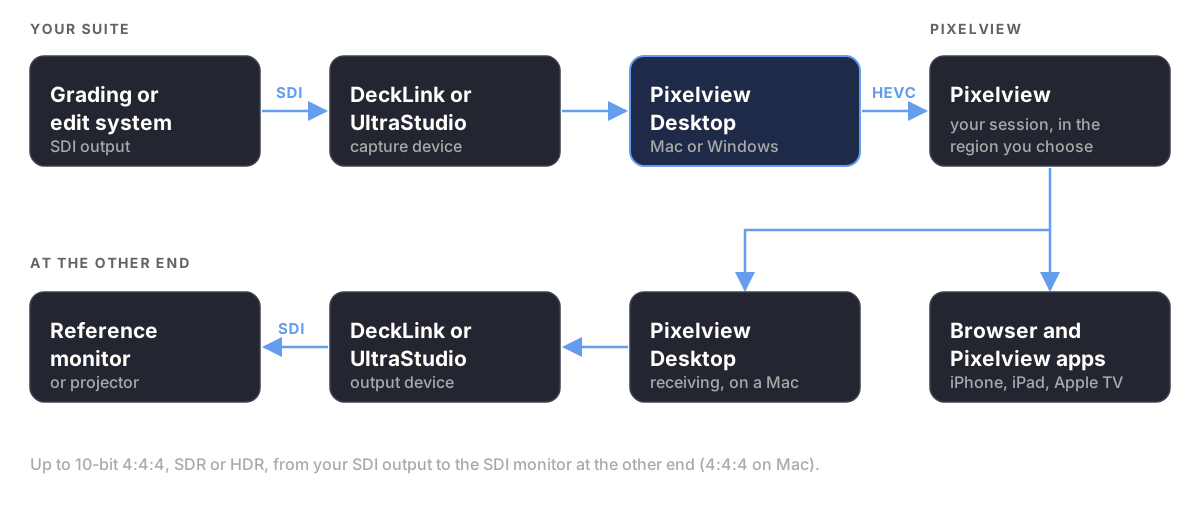
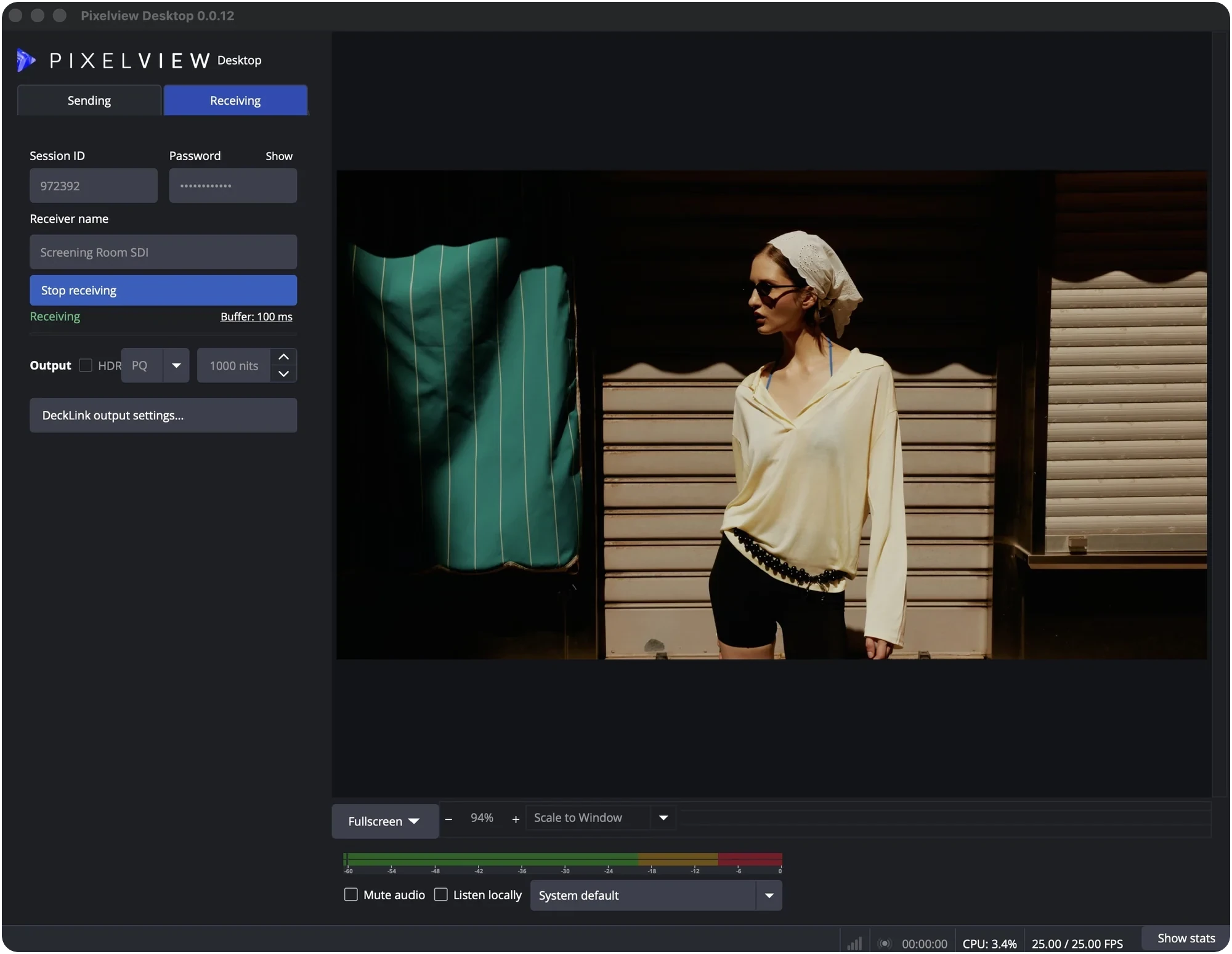
Pixelview Desktop is the recommended way to stream to Pixelview. It takes the SDI output of your grading or edit system through a Blackmagic DeckLink or UltraStudio device and streams it, in up to 10-bit 4:4:4, SDR or HDR. On a Mac it can also receive a session and play it out to an SDI monitor.
| Mac | Windows | |
|---|---|---|
| Stream to Pixelview | Yes | Yes |
| Colour | Up to 10-bit 4:4:4, SDR and HDR | Up to 10-bit, SDR and HDR |
| Play a session out over SDI | Yes, up to 10-bit 4:4:4 | Not yet |
1. Install
macOSApple Silicon, macOS 14 or laterDownload for Mac
Windows64-bit Windows 10 (22H2) or Windows 11. Sending only.Download for Windows
- Install Blackmagic Desktop Video and connect your capture device.
- Mac: open the
.dmgand drag Pixelview Desktop to Applications. Windows: run the installer. - Open Pixelview Desktop.
The app updates itself and can sit next to an existing OBS Studio installation without changing it.
2. Pair with your encoder
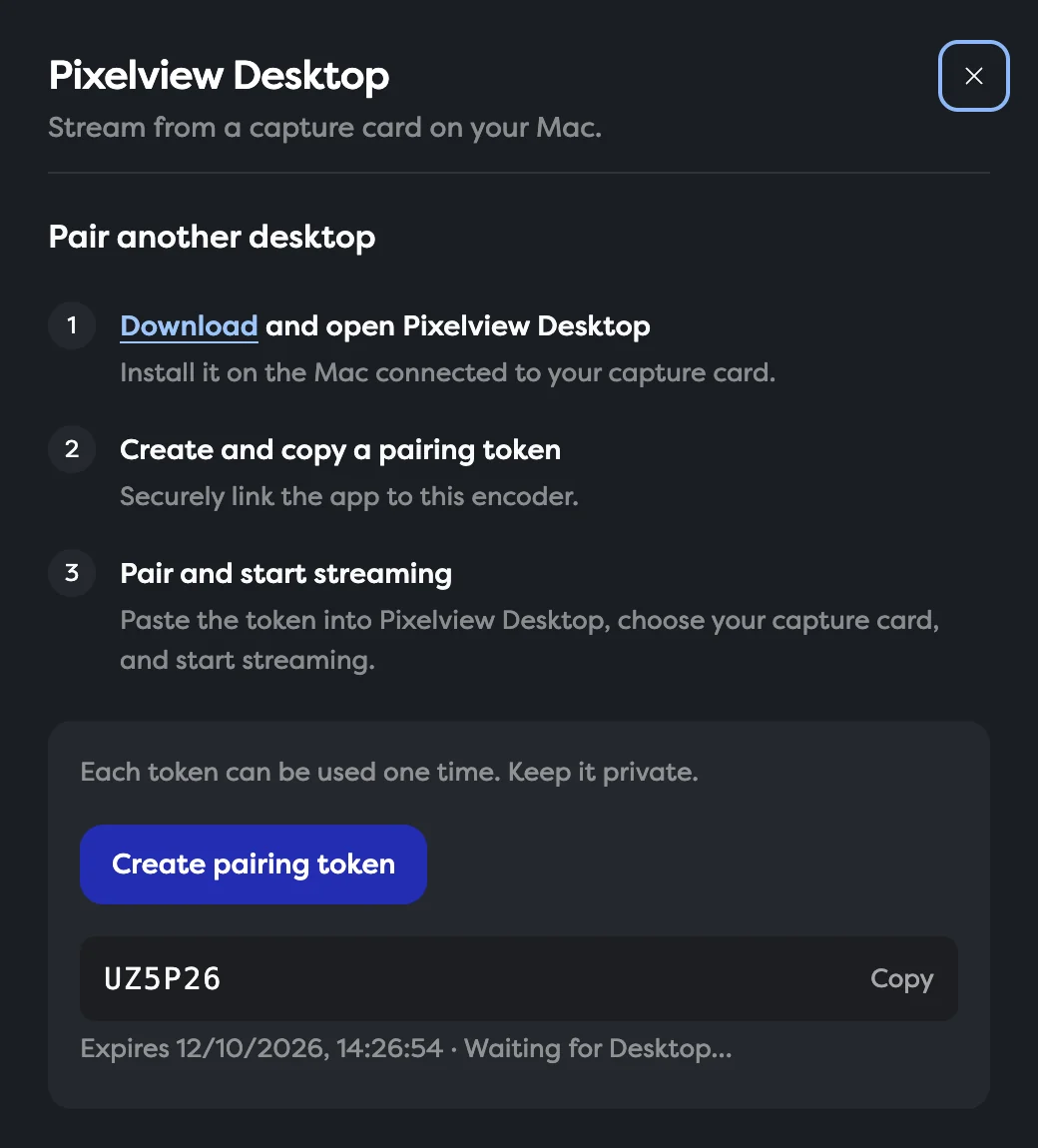
- In Pixelview Admin, on the Sessions page, click Pixelview Desktop under Source. If a desktop is already paired, click Pair another desktop.
- Click Create pairing token, then Copy. The token works once and expires after 5 minutes.
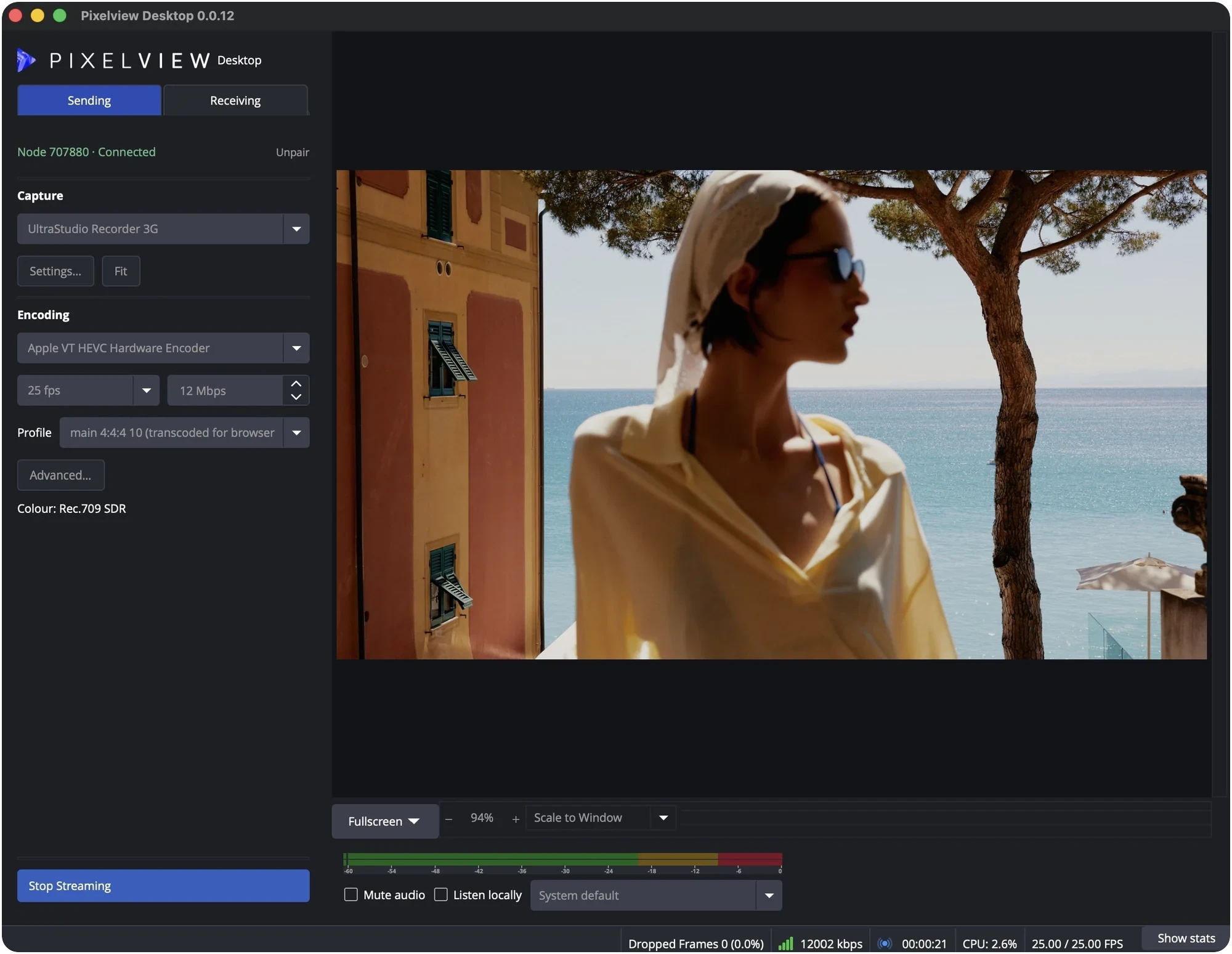
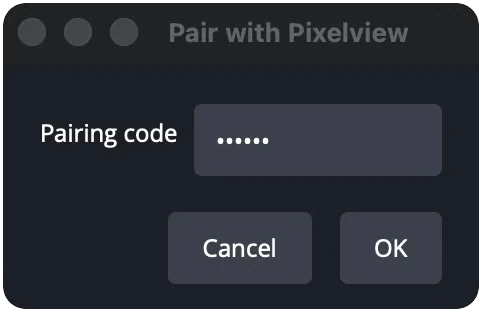
- In Pixelview Desktop, on the Sending tab, click Pair with Pixelview, paste the token into Pairing code and click OK.
The app now shows Node … · Connected and reconnects by itself every time it opens.
3. Choose your capture device
In Capture, select your DeckLink or UltraStudio device. Use Settings… to change the input, video mode or colour range, and Fit if the picture does not fill the preview. Pixelview Desktop streams 1920 × 1080; larger sources are scaled to fit.
No capture card at hand? The device list also has test patterns.
4. Set the profile
Set Profile to main10. It is the recommended profile because it plays natively on every viewer device. The other encoding settings are preset for Pixelview.
| Profile | Trade-off |
|---|---|
| main10 | Recommended. 10-bit, plays natively in browsers, the iPhone, iPad and Apple TV apps, and Pixelview Desktop. |
| main 4:2:2 10 (Mac) | Plays natively in the iPhone and iPad apps and Pixelview Desktop. For browsers it is converted on the server, which adds some delay. |
| main 4:4:4 10 (Mac) | Same as 4:2:2: native in the iPhone and iPad apps and Pixelview Desktop, converted on the server for browsers. Needs an RGB 4:4:4 SDI signal. |
Sending HDR
- Set your grading system's SDI output to HDR (PQ or HLG).
- In Admin, open Settings → Server and set Input Color Profile to match your grade, for example Rec.2020 PQ/ST2084, or P3-D65 PQ/ST2084 — sending with Pixelview Desktop for a P3-D65 grade. Set Max Luminance (HDR). See Color Settings.
- In Pixelview Desktop, check that the Colour line shows the HDR profile.
Not on Apple TV
HDR is not available on Apple TV. An HDR session plays there in SDR, tone-mapped.
5. Start streaming
- In Admin, create or activate a project (Create a Project).
- In Pixelview Desktop, click Start Streaming.
- Check the thumbnail in Admin, then invite viewers.
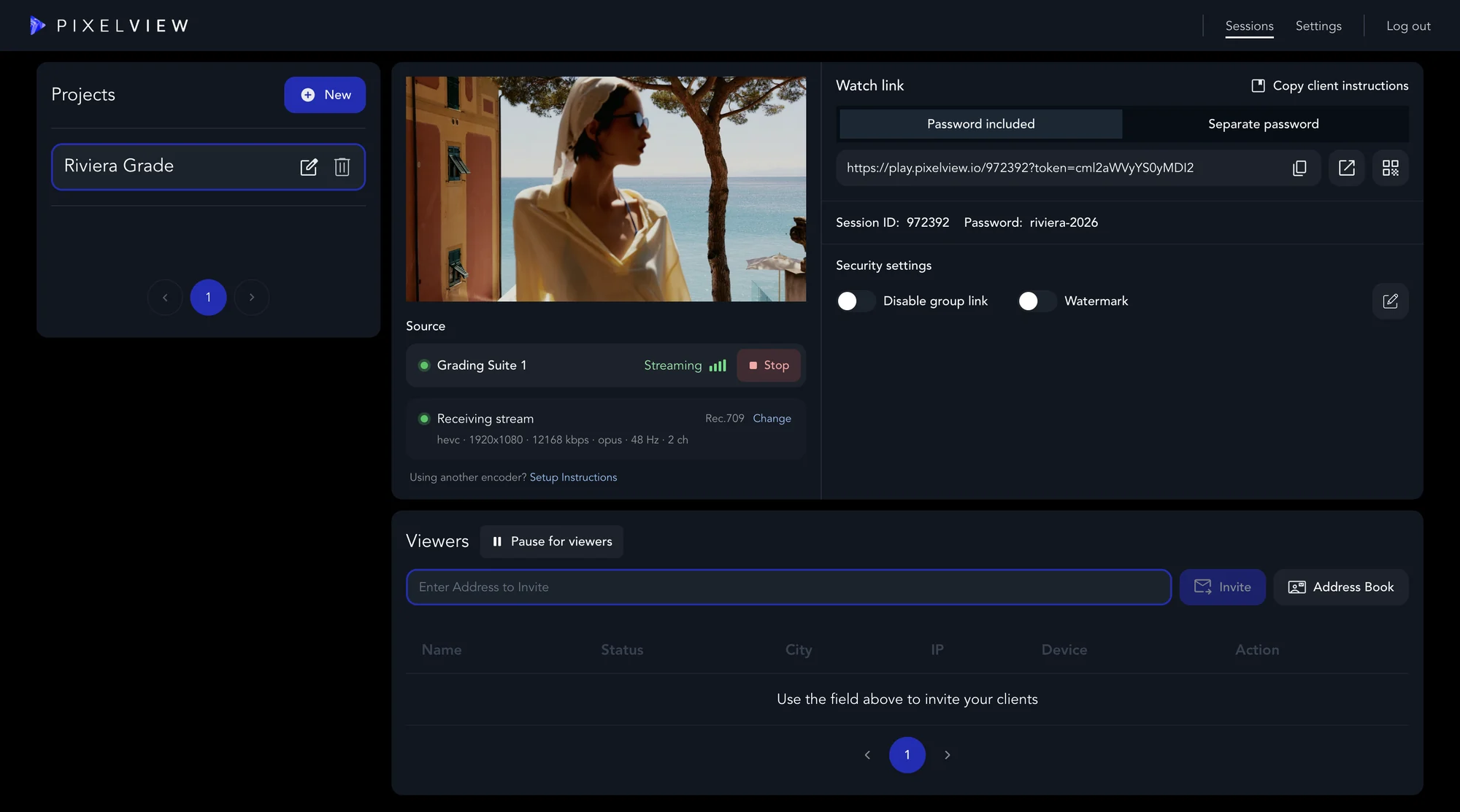
You can also start and stop the stream, and change its settings, from the desktop's panel in Admin.
| If Pixelview Desktop says | Do this |
|---|---|
| An active session is required | Create or activate a project in Admin. |
| The encoder is paused | Resume the project in Admin. |
| A subscription is required | Activate a plan (Billing and Plans). |
| Pixelview could not start the stream | Try again, or restart the server from Admin. |
Only one source can stream to an encoder at a time, so stop OBS or any other encoder first.
Watch on an SDI monitor
On a Mac with a DeckLink or UltraStudio output, Pixelview Desktop can join a session with its Session ID and password and play it out to a reference monitor or projector, in 10-bit 4:2:2 or 10-bit 4:4:4 RGB. See Receive a Stream and Play Out over SDI.
Unpair
Click Unpair in Pixelview Desktop, or Unpair desktop in Admin. To move to another encoder, unpair and pair again with a token from that encoder.
Pixelview Desktop is built on OBS Studio and distributed under the GPL; source code is at github.com/pxlview/pixelview-desktop.
Need help? Email hello@pixelview.io.
Using another capture device, NDI, a screen capture, Linux or an Intel Mac? See Choose How to Stream.