
Collaboration Tools
Talk, chat, share screens, draw and show references inside the review session, on the same picture everyone is watching.
Video chat
- Click Start Video Call.
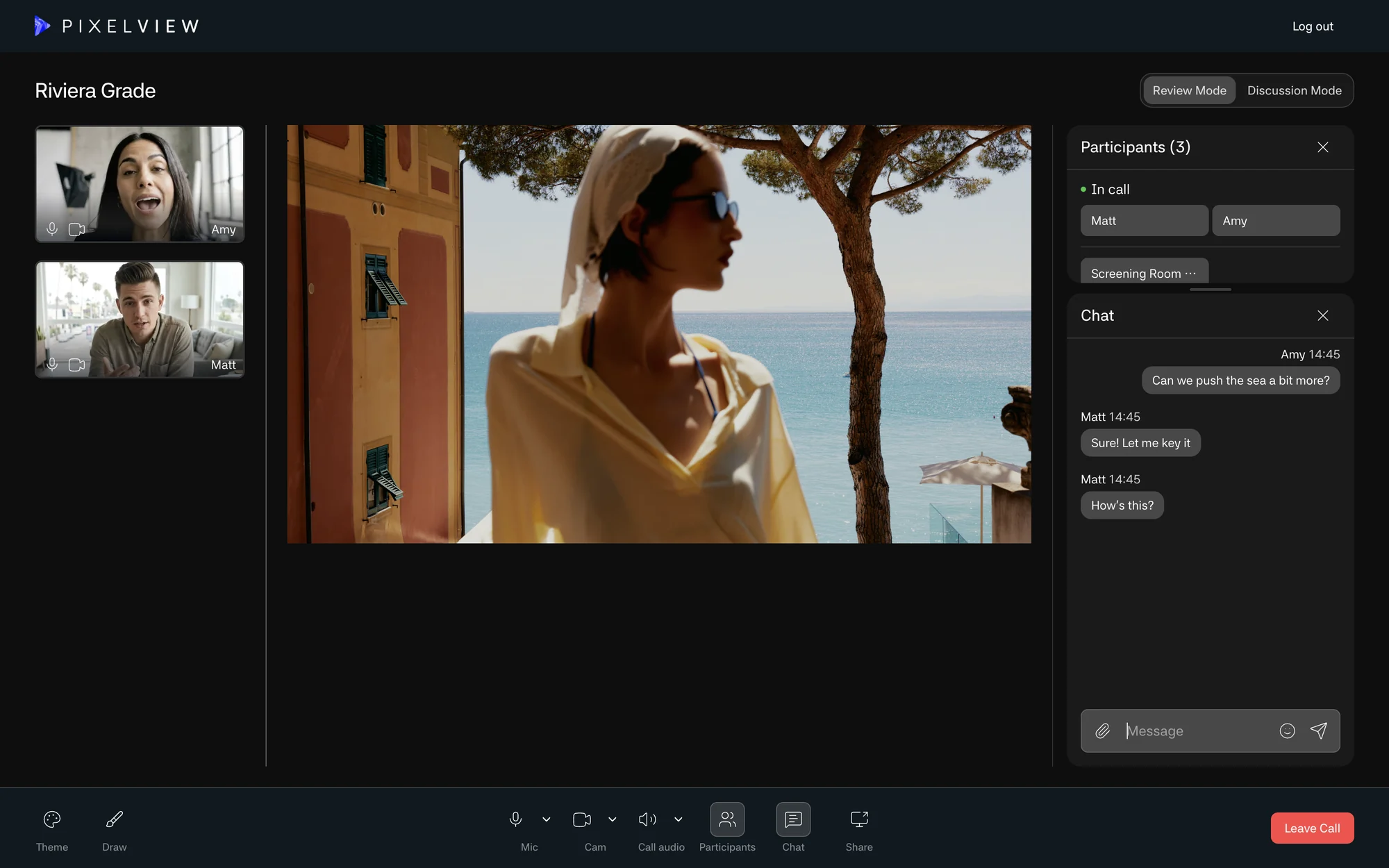
- In Setup Your Call, choose camera, microphone and speaker, and turn on Background Blur or Noise Cancellation if needed.
- Click Join Call.
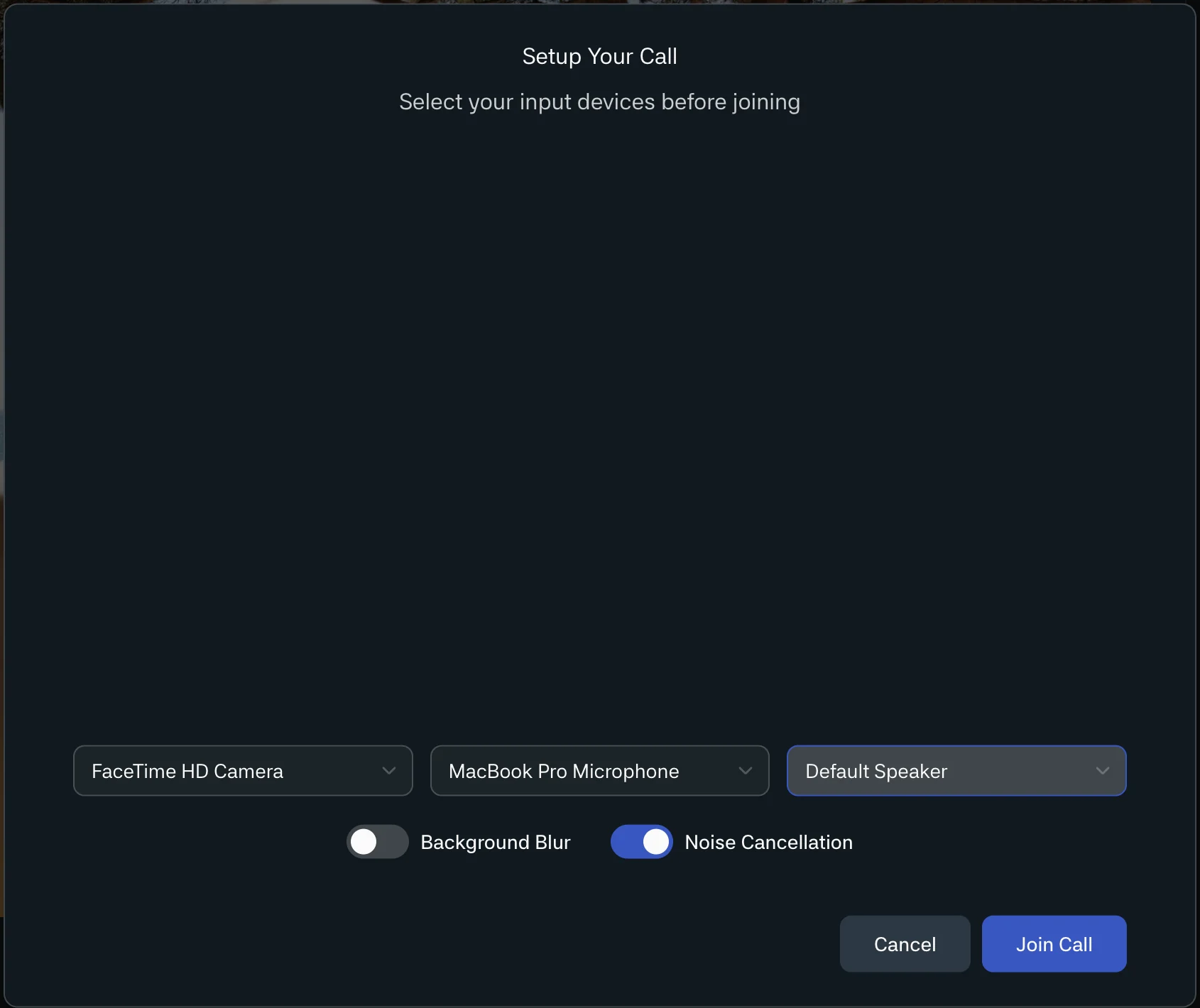
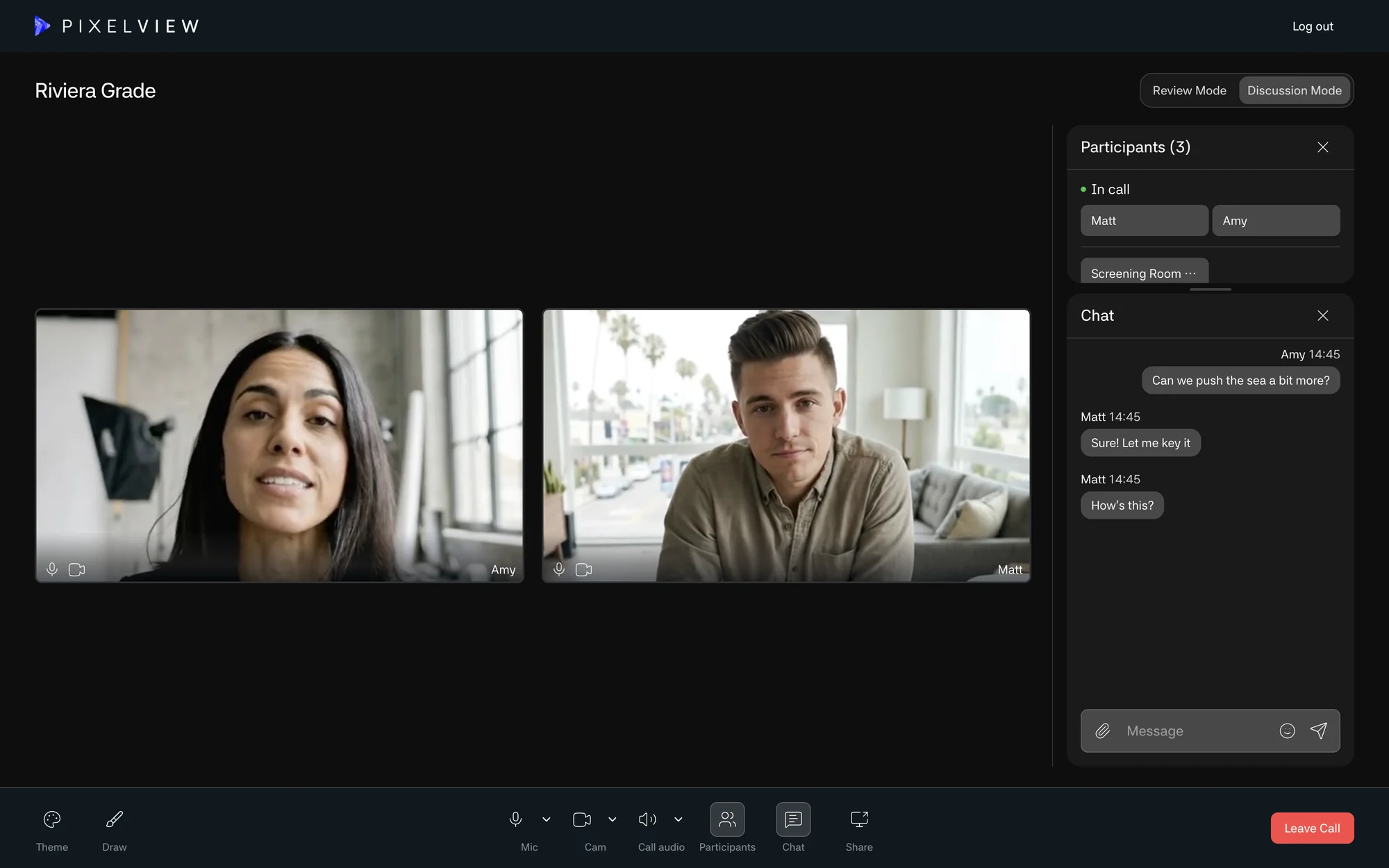
In the call you have camera and microphone controls, speaker selection where supported, an active speaker indicator, the participant list, pinned or gallery layouts and screen sharing. Admins can mute and unmute participants. You are asked for call quality feedback after leaving.
Text chat
Click Chat in the bottom bar. Use it for notes, links and approvals. In the browser, Enter sends and Shift+Enter adds a new line. You can add emoji and attach files or media, which show a preview. Names match the participant list, and unread messages are marked. On iPhone and iPad, chat is native, with media preview, copy, share and delete actions, and typing indicators.
Screen sharing
Share a desktop, app or screen, for example a reference document, edit list or client notes. The share replaces the main stream area so everyone looks at the same thing. Use one screen share at a time.
Annotations
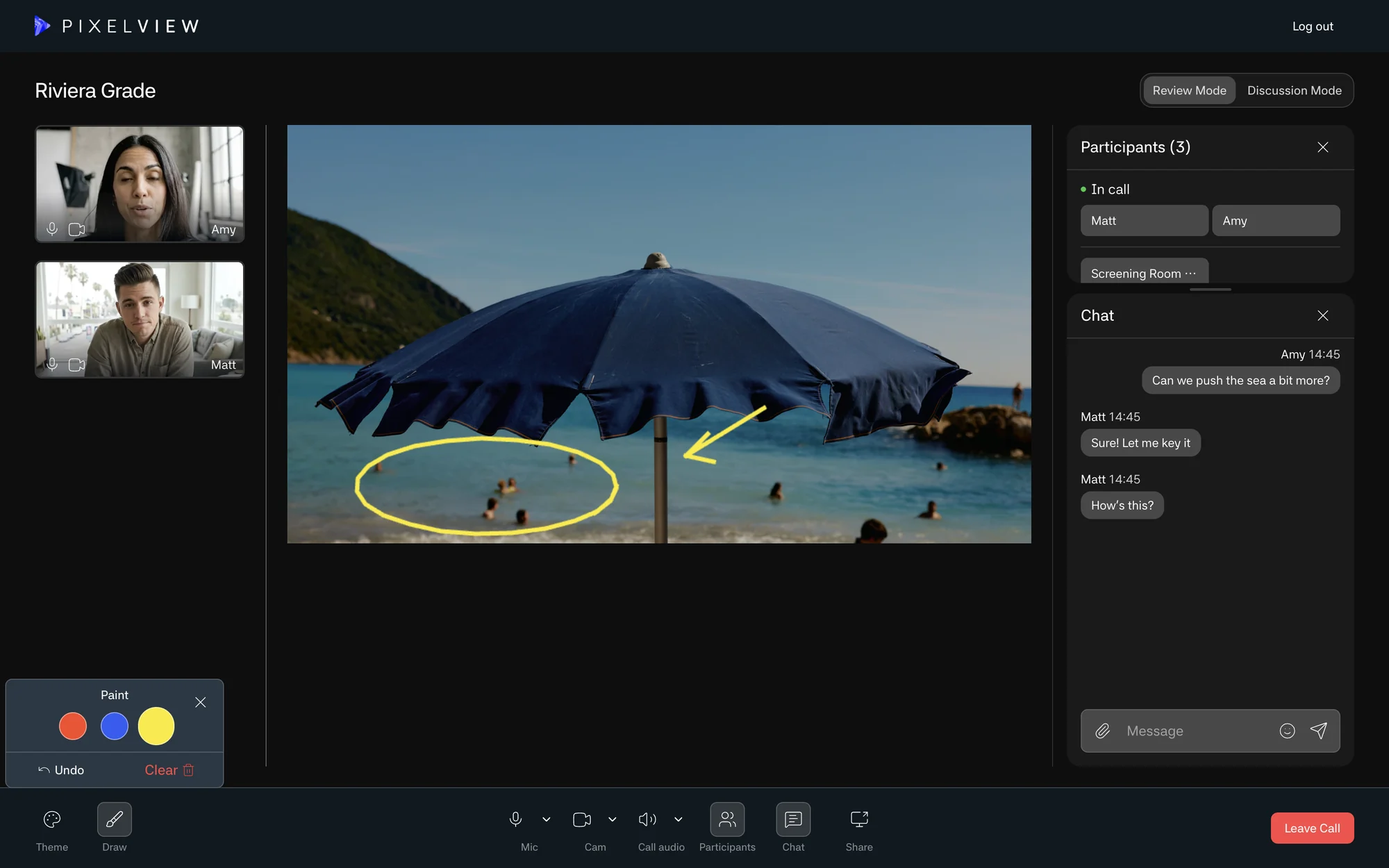
Click Draw, pick a colour and draw on the live picture or screen share. Undo removes the last stroke and Clear removes them all. Strokes sync to every viewer and scale with the player.
Reference images
Show colour targets, framing examples, grade references or previous versions next to the stream, chat and annotations.
Admin controls
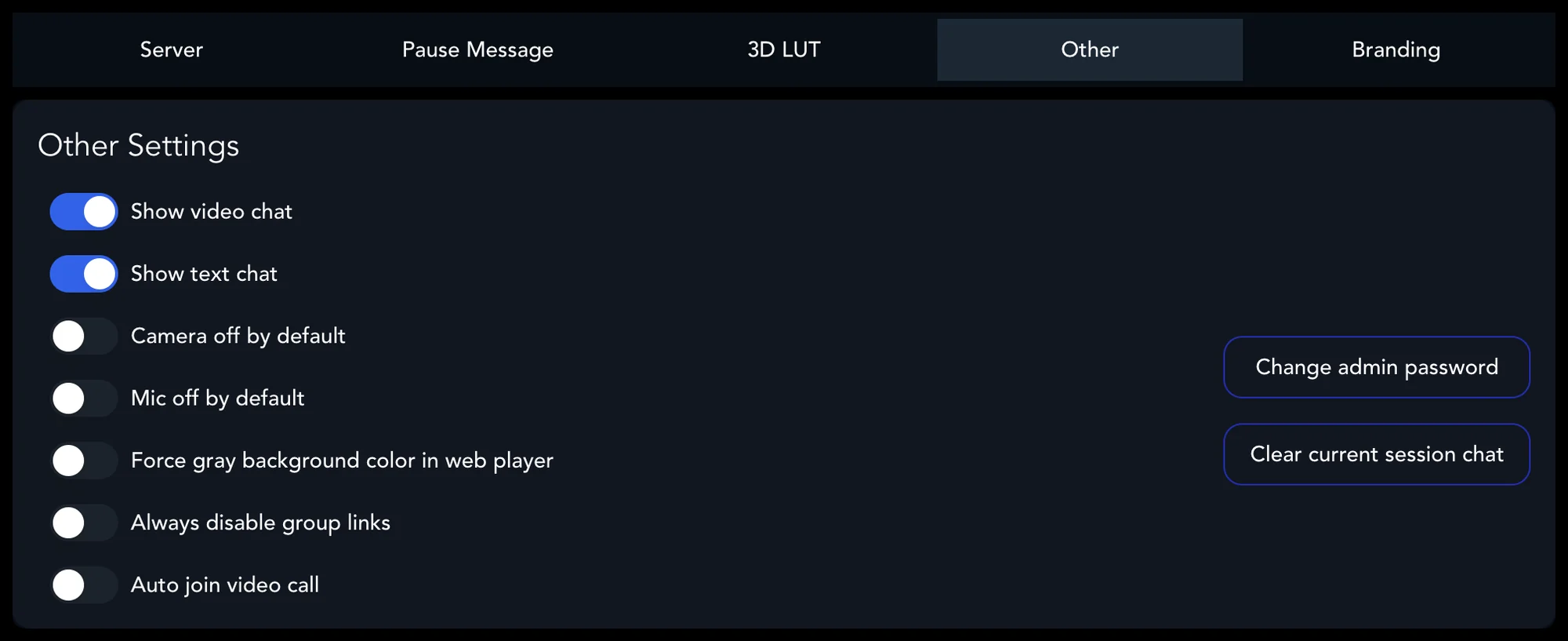
In Admin, Settings → Other controls the collaboration tools for every session on the encoder: Show video chat, Show text chat, Camera off by default, Mic off by default, Force gray background color in web player and Auto join video call. Clear current session chat removes the chat history of the running session. Admins can also mute and unmute participants during a call.
For large client reviews, start viewers with camera and microphone off. For sensitive sessions, use private invites and viewer controls.