
Receive a Stream and Play Out over SDI
In Receiving mode, Pixelview Desktop on a Mac joins a session as a viewer and plays picture and sound out through a Blackmagic DeckLink or UltraStudio device to an SDI reference monitor, projector, router, scopes or multiviewer.
Mac only
Receiving is not yet available in Pixelview Desktop for Windows. Use a Mac with Apple Silicon to receive and play out over SDI. Windows can send, including HDR.
Remote roomPixelviewPixelview DesktopDeckLink / UltraStudioSDI monitor
You need an Apple Silicon Mac on macOS 14 or later with Pixelview Desktop, a Blackmagic output device (for example a DeckLink card in a Thunderbolt chassis or an UltraStudio Monitor 3G) with Desktop Video installed, and the session's Session ID and password. No Pixelview account or pairing is needed.
1. Get the session details
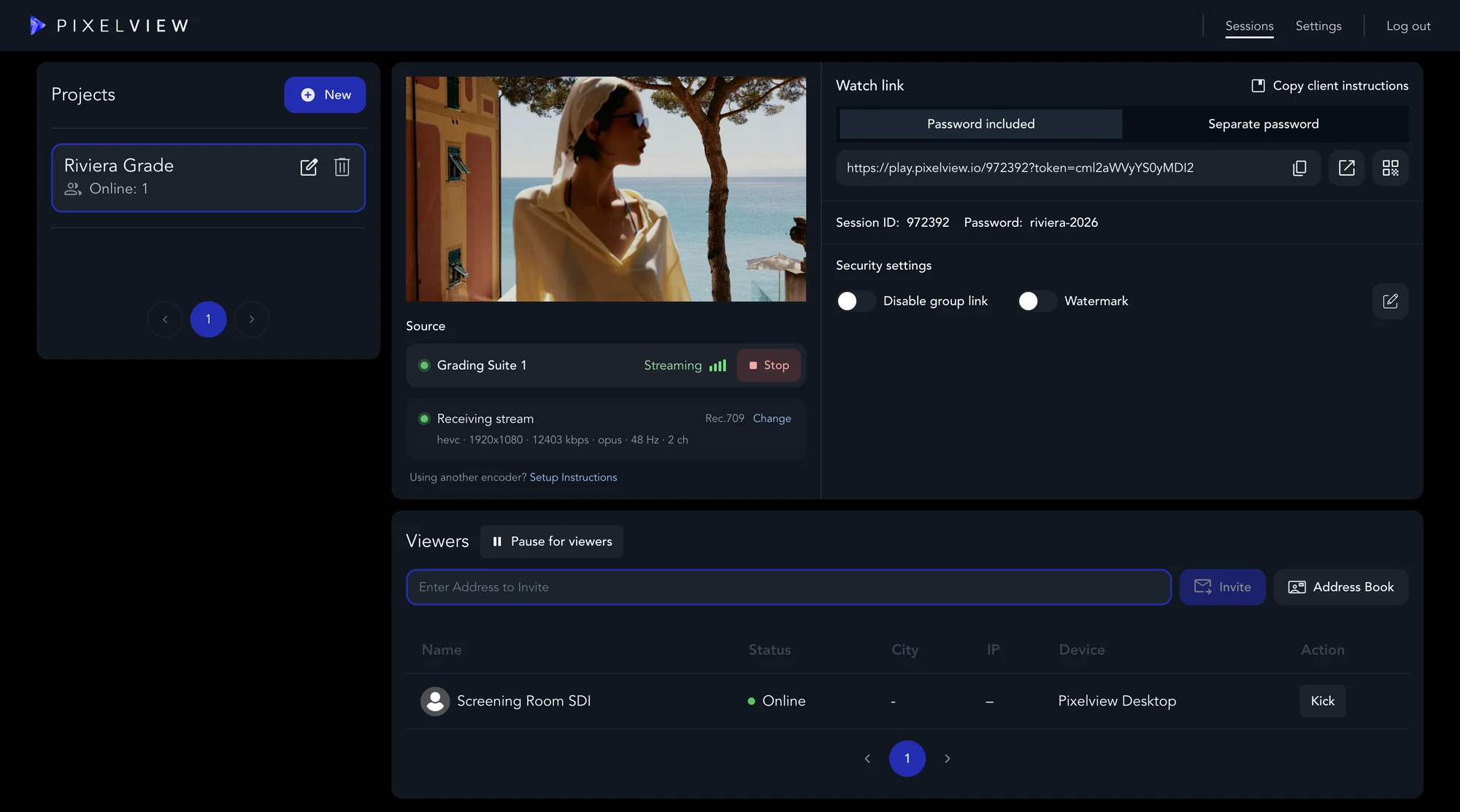
The host finds the Session ID and Password on the Sessions page in Admin, under the watch link; they are the same details viewers use in the apps (Session Access and Invites). Each receiver counts as one viewer and appears in the host's list under its receiver name, with Pixelview Desktop as the device.
2. Enter the session
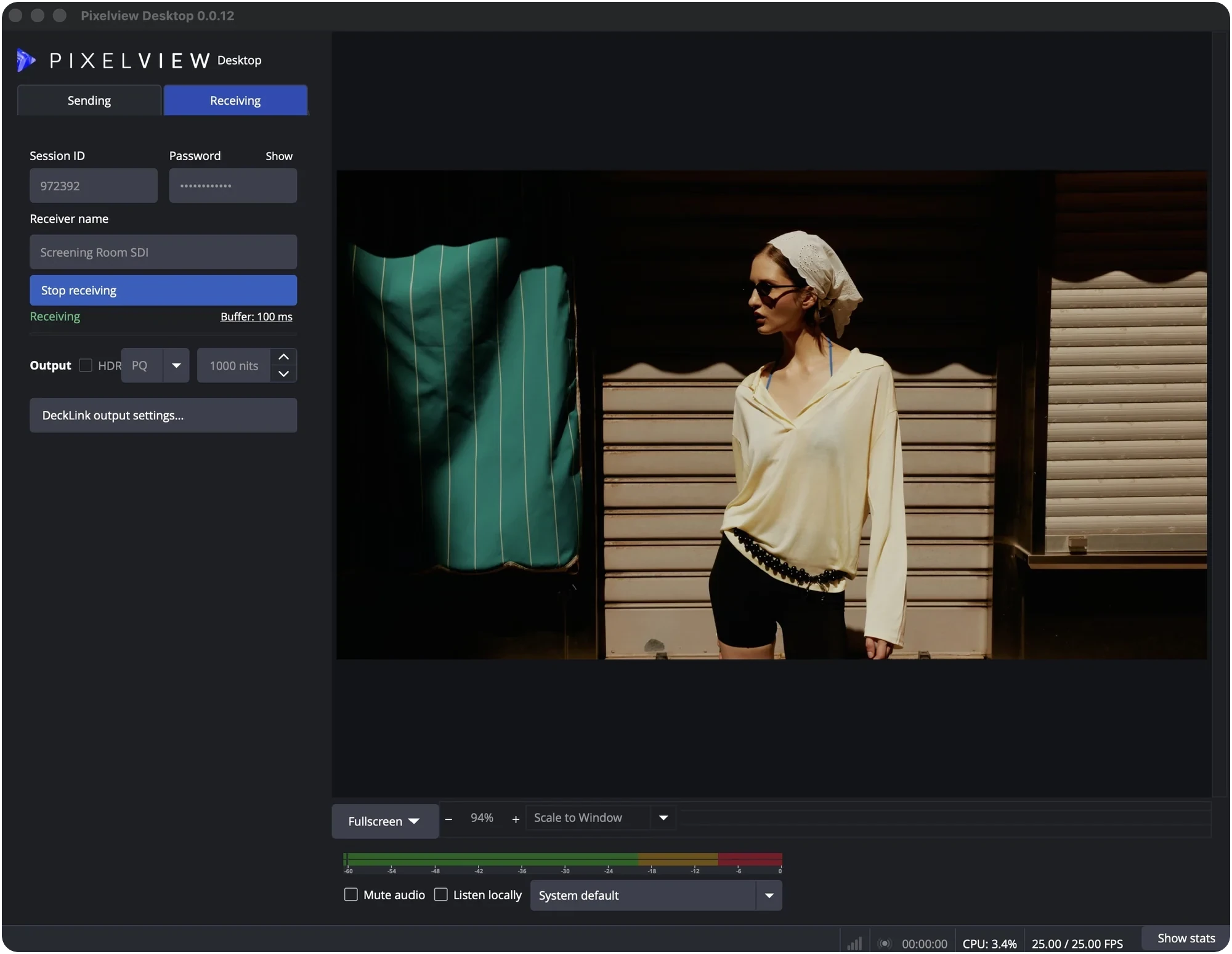
- Select the Receiving tab. The app remembers the last mode; you cannot switch while sending or receiving.
- Enter the Session ID and Password (Show reveals what you typed).
- Enter a Receiver name the host will recognize, such as
Grading Suite 2 SDI. It defaults to the Mac's name.
The session ID and receiver name are remembered; the password is kept only in the macOS Keychain, for that session.
3. Set up the SDI output
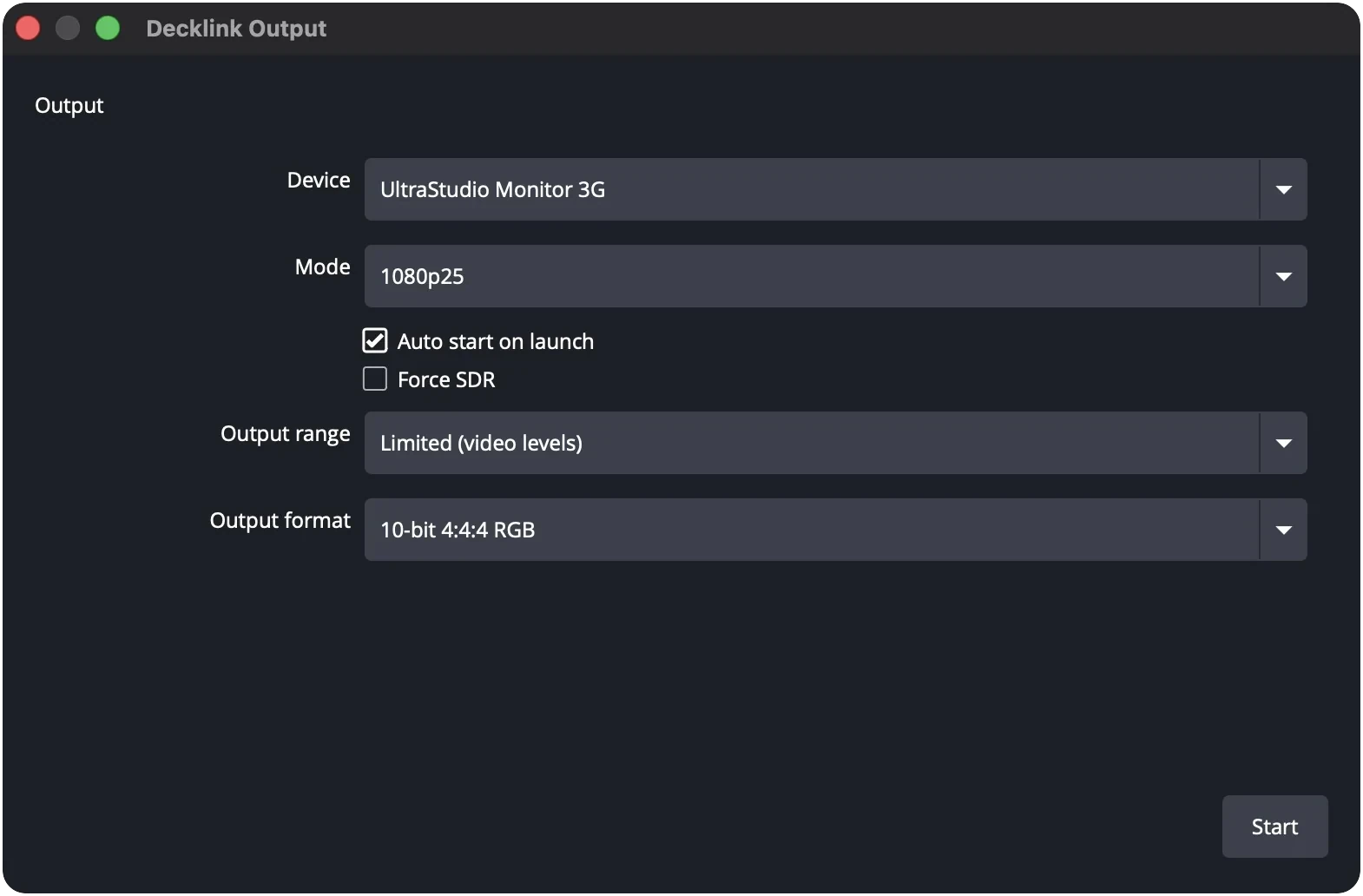
Click DeckLink output settings…:
| Setting | What to choose |
|---|---|
| Device | Your output device, for example UltraStudio Monitor 3G |
| Mode | The format and frame rate of the incoming stream, for example 1080p25. Ask the host. |
| Auto start on launch | Starts the output by itself as soon as picture arrives |
| Output range | Limited (video levels) for most monitors, or Full if your monitor expects full-range SDI |
| Output format | 10-bit 4:2:2 Y'CbCr (default), or 10-bit 4:4:4 RGB for full chroma resolution |
The output mode sets the frame rate
While receiving, the output mode is the only frame-rate setting: Pixelview Desktop runs at exactly that rate. Match it to what the host streams.
4:4:4 on 3G-SDI
If the sender uses main 4:2:2 10 or main 4:4:4 10, a Pixelview Desktop receiver and the iPhone and iPad apps get the original stream; browsers get a version converted on the server, with some extra delay. To keep 4:4:4, set Output format to 10-bit 4:4:4 RGB. It is sent on a single SDI link, so a 3G-SDI device such as the UltraStudio Monitor 3G is enough. Set your monitor's SDI input to RGB 4:4:4 too.
HDR sessions
Tick HDR next to Output in the Receiving panel, choose PQ or HLG to match the sender, and set the peak brightness in nits (default 1000). Ask the host for their colour profile and brightness. When the device supports it, the SDI signal carries HDR metadata. Force SDR in the output settings converts to SDR for an SDR monitor.
4. Start receiving
- Click Start receiving. The status goes from Waiting for video… to Receiving.
- If Auto start on launch is off, start the output from the output settings.
- Check picture and sound on the SDI monitor.
Click Stop receiving to stop. To also show the picture on a display connected to the Mac, use Fullscreen under the preview or the View menu; Esc exits.
Buffer: 100 ms sets how much picture is held back to smooth network hiccups (0 to 2000 ms, adding the same delay). Leave it at 100 ms unless you see glitches.
Supported streams
| Supported | |
|---|---|
| Resolution | Up to 1920 × 1080 |
| Video | HEVC main, main10, main 4:2:2 10 and main 4:4:4 10, H.264, VP9 |
| Audio | Stereo |
| Colour | SDR Rec.709, HDR PQ and HLG (Rec.2020), limited range in the stream |
| SDI output | 10-bit 4:2:2 Y'CbCr or 10-bit 4:4:4 RGB, limited or full range |
When receiving stops
| Message | What it means |
|---|---|
| Removed from this session by its host | The host removed this receiver from the viewer list. It cannot rejoin that session. |
| This session has ended. It was deleted or expired on Pixelview. | The project was deleted or reached its expiry. Ask the host for a new session. |
| Receive media failed. Check connection and retry. | The connection dropped. Check the network and click Start receiving. |
Short interruptions are handled automatically and the SDI output keeps running. If the stream is gone longer, the output holds the last picture and resumes when video returns.
Troubleshooting
| Problem | Fix |
|---|---|
| Output did not start: Nothing received yet | Start receiving and wait for picture in the preview, then start the output. |
| Output did not start: Device or mode unavailable | Check the device is connected and Desktop Video sees it. Pick a mode it supports. |
| Output did not start: Card in use | Another app (for example DaVinci Resolve with its video output on the same card) is using it. Close it or change its output. |
| Output settings unavailable | Install or update Desktop Video, reconnect the device, restart Pixelview Desktop. |
| Login refused | Check the Session ID and password. The session may be at its viewer limit (host can free a seat or upgrade) or have ended. |
| Uneven motion | The output mode does not match the stream's frame rate. Choose the matching mode, then stop and start the output. |
| Blacks grey or crushed | Set Output range to match the monitor's SDI input. |
| Green or magenta with 4:4:4 | Set the monitor input to RGB 4:4:4, or switch to 4:2:2. |
| HDR flat or too bright | Check HDR, PQ/HLG and nits match what the host streams. |
| Picture glitches | Raise the buffer in steps (200 ms, then 400 ms) and reconnect. Use wired network where possible. |
Need help? Email hello@pixelview.io.