
Security Best Practices
These are the settings that control who can join a review, what they see, and when their access ends. Each session runs on its own isolated server, and live video is passed through to viewers, not stored.
| Control | Use it when |
|---|---|
| Unique session password | Every project/client review. Do not reuse one password across clients. |
| Link without embedded password | You want to send the password separately. |
| Private email invites | You need named viewers whose access you can revoke one by one. |
| Disable group link | Access should be limited to invited viewers. |
| Watermarking | You want visible deterrence on the viewer image. |
| Expiration date | Access should end after a known time. |
| Kick/revoke | A viewer should be removed immediately or permanently. |
| Team roles | Multiple operators need different account access. |
| 2FA | Admin/owner accounts should be protected. |
Lock down a sensitive review
- Set a unique password for the project.
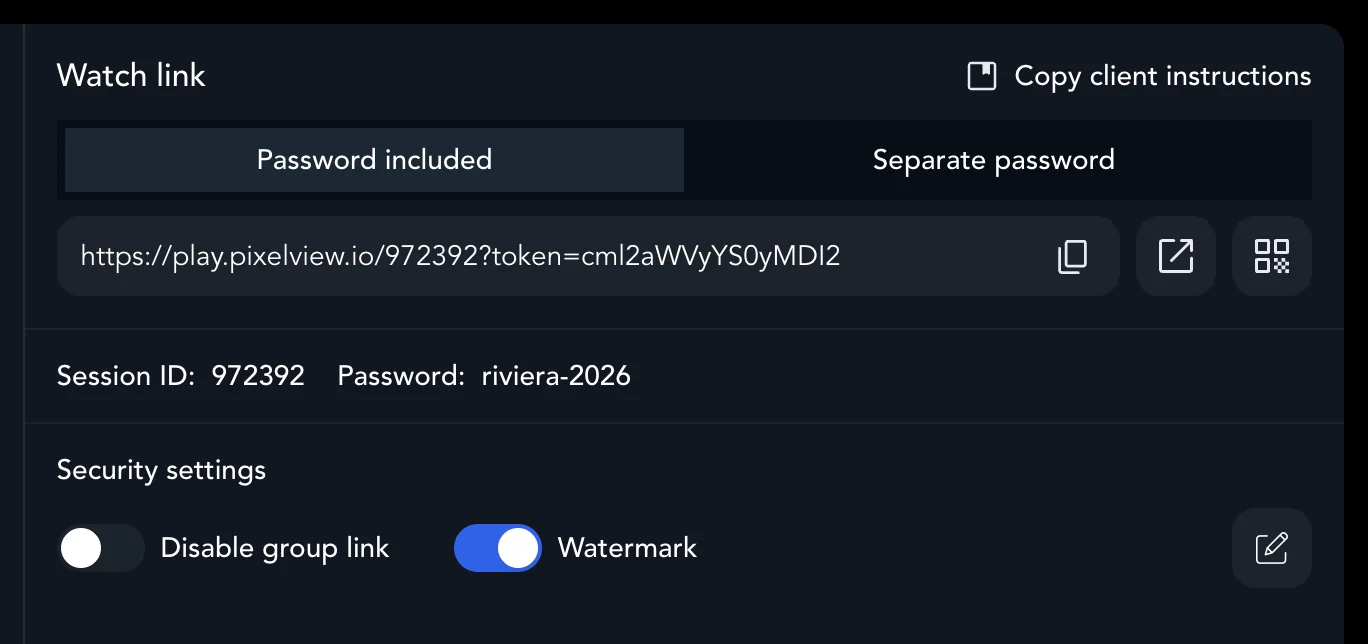
- Disable the group link: it is convenient but can be forwarded. Send private email invites instead. Some accounts can have group links disabled by default.
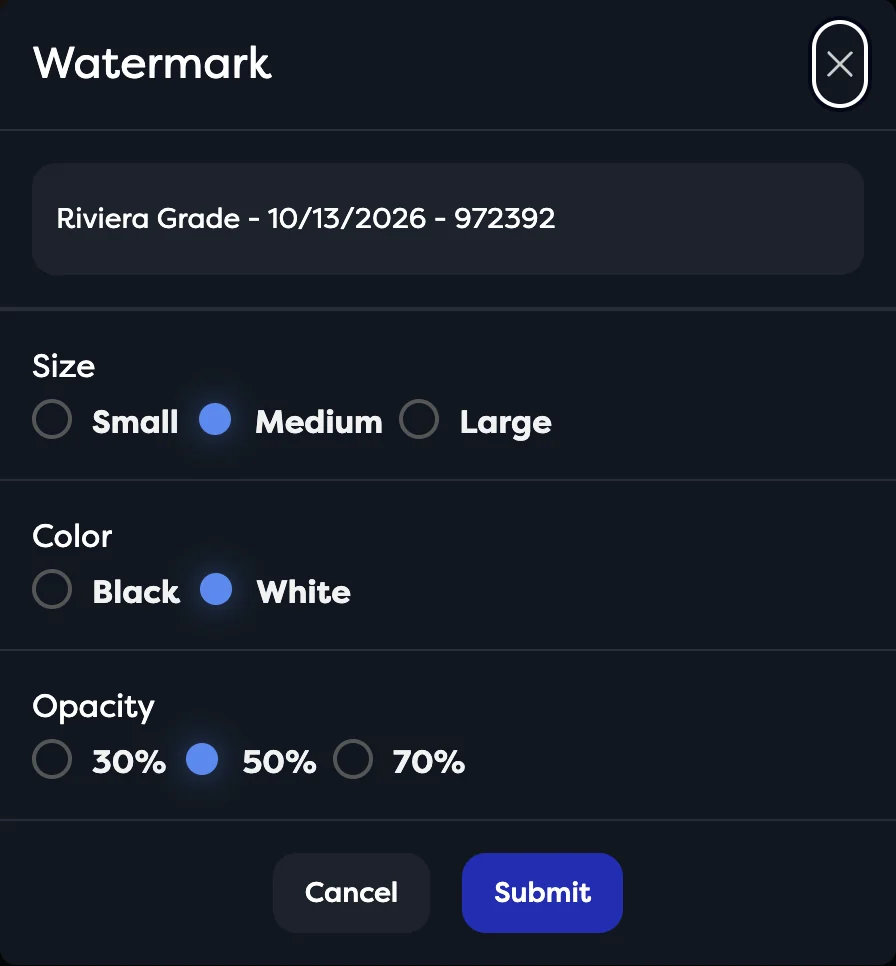
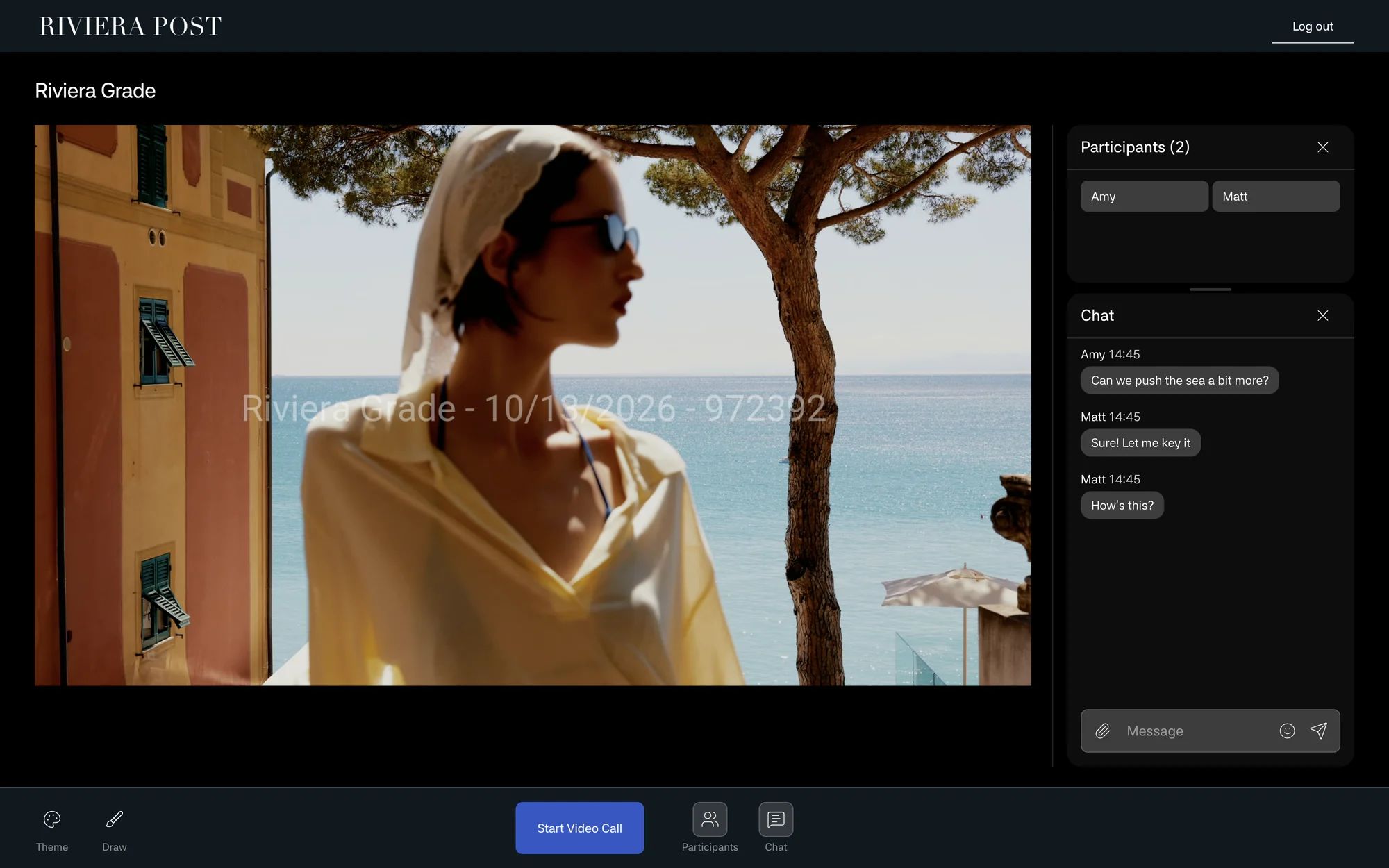
- Turn on Watermark under Security settings on the Sessions page. Click the pencil button next to it to set the text (project, date and session by default), Size, Color and Opacity, so it is visible without blocking the picture. Watermarking depends on your plan.
- During the review, keep the viewer table open and watch for unfamiliar names, unexpected locations or devices, and duplicate viewers. Use Kick for someone online and Revoke for an invite that should stop working.
- Pause the stream during breaks or internal discussion.
- When the review is done, delete, expire or archive the project.
Never post viewer links that include a token in public channels.
Protect the account
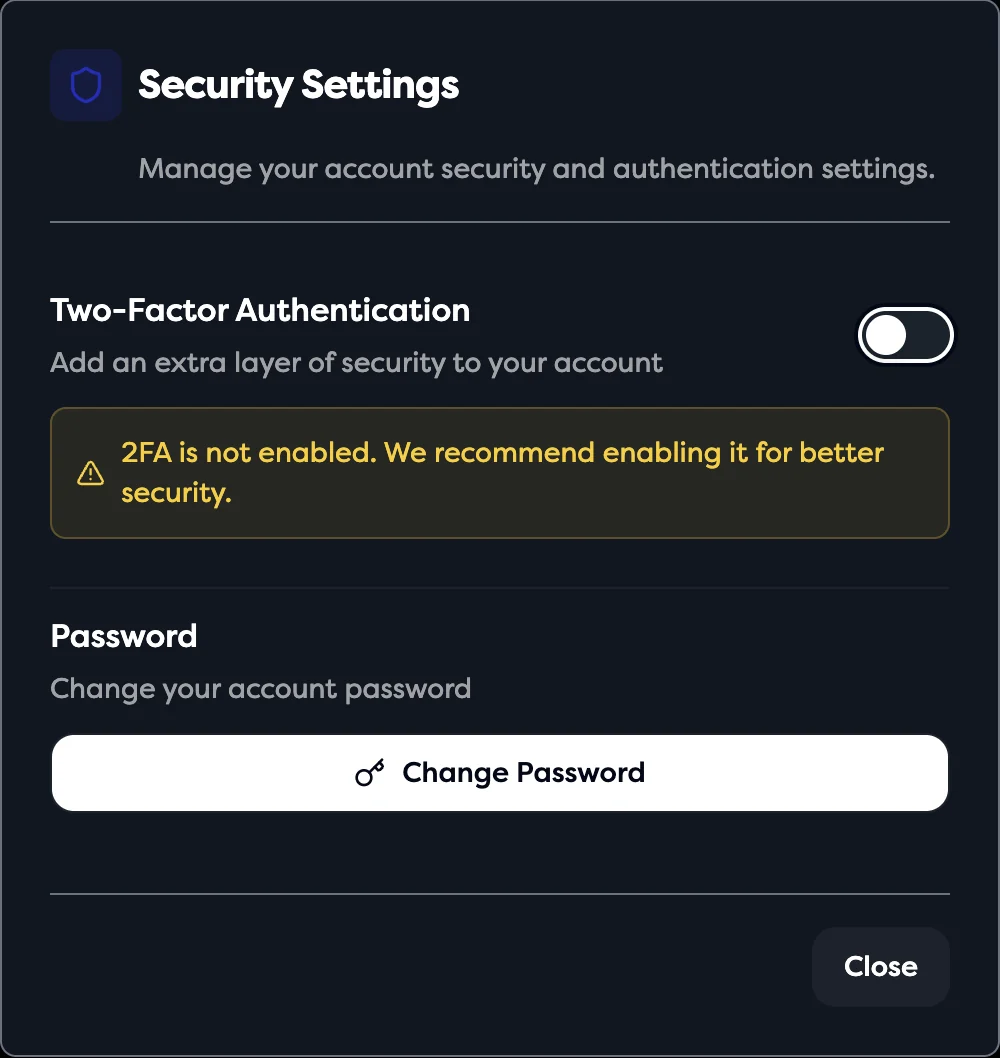
Give each operator their own login with a team role instead of sharing an admin password, keep Owner and Admin roles to a few people, remove old team members, and turn on two-factor authentication: on the Account page, open Security Settings and turn on Two-Factor Authentication. Change Password is in the same place. See Teams and Roles.
Do not promise clients compliance claims unless they are confirmed in your agreement. For detailed guidance, download the Pixelview Hardening Guidelines (PDF).