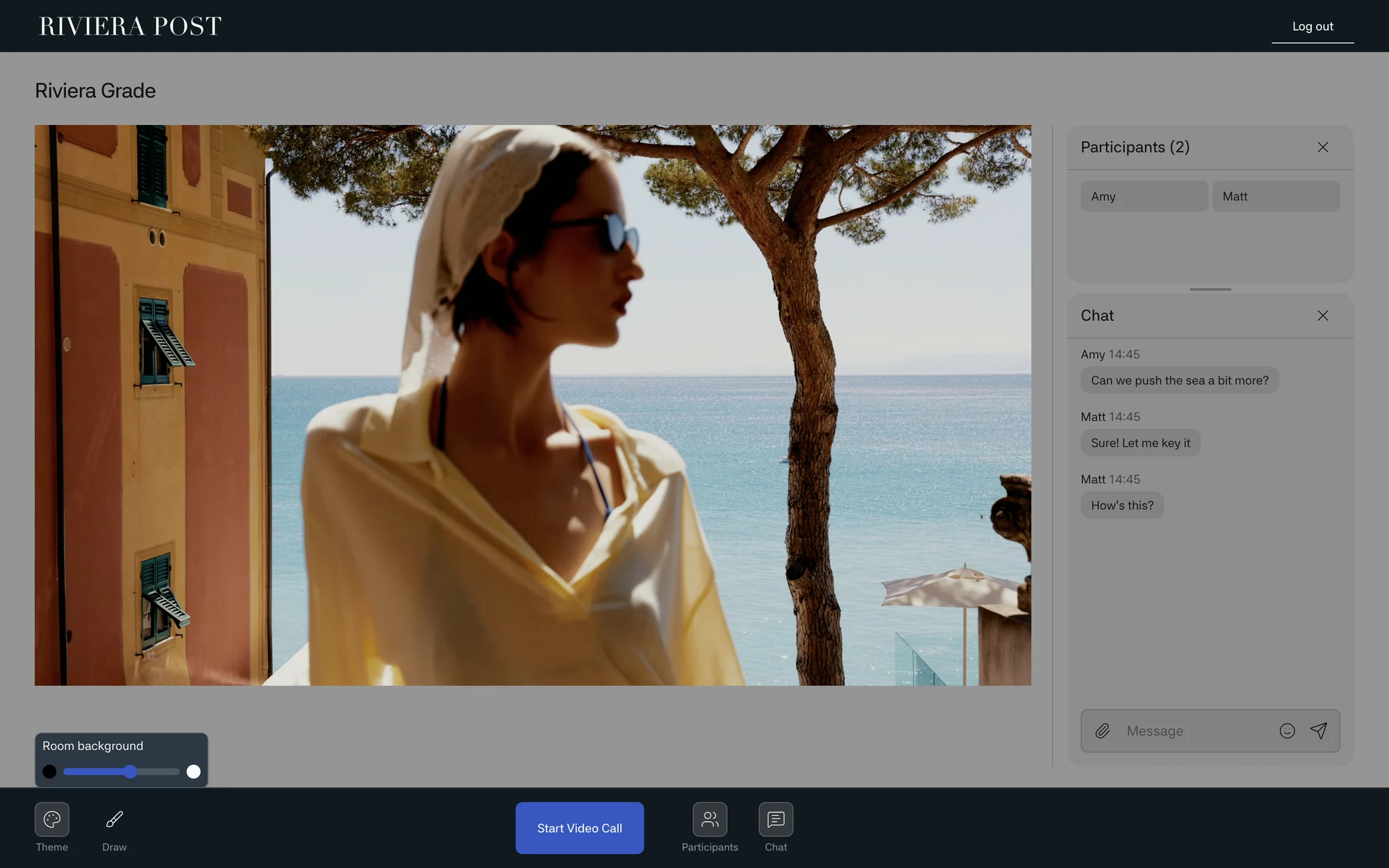
Branding and Pause Screen
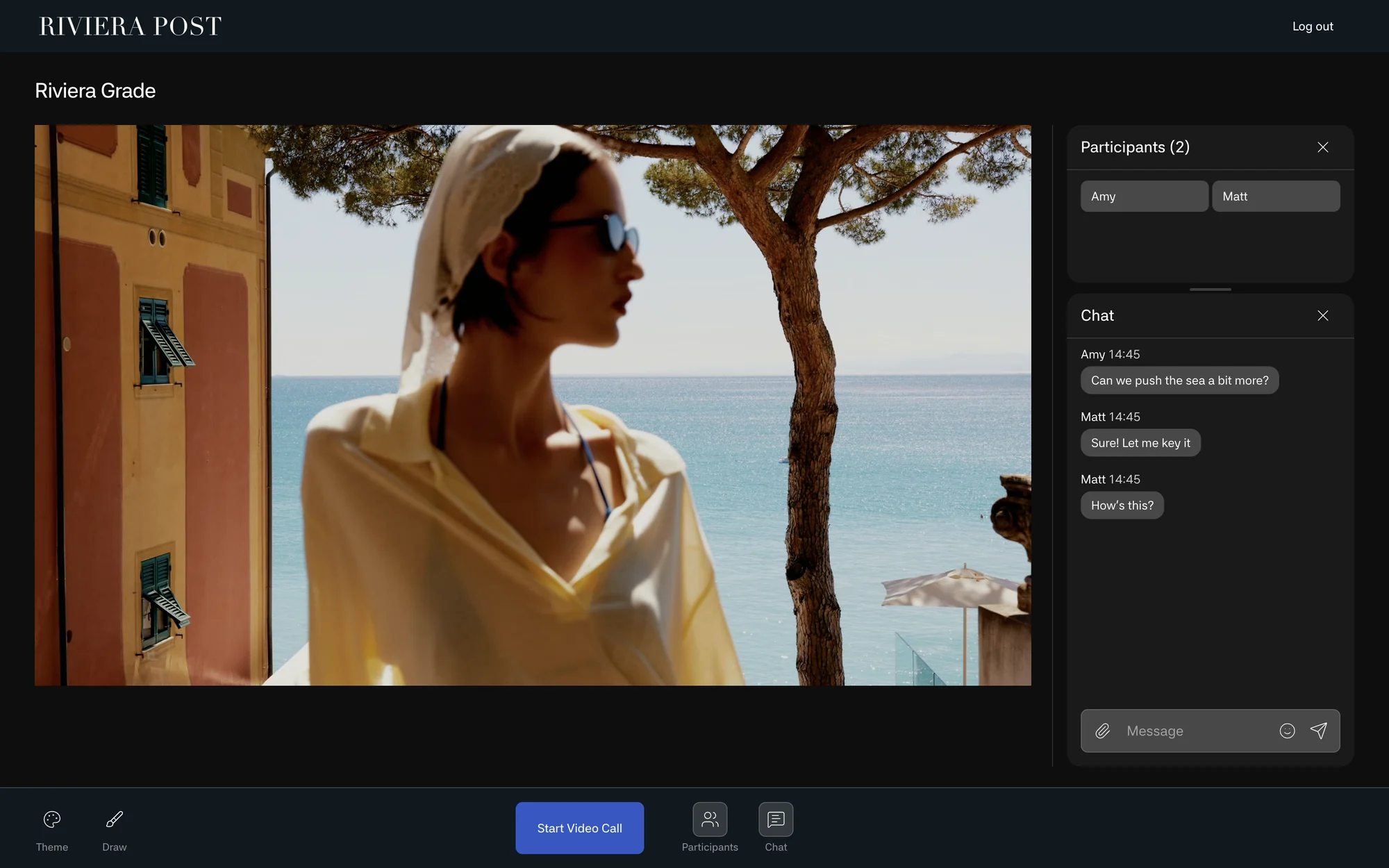
Set what viewers see around your picture: the project title and description, your logo, and the screen shown while the session is paused.
Project title and description
Give each project a title that tells viewers what they are joining, for example Episode 204 Color Review or Agency Review - Cut 03. Use the description for short context such as the review stage, purpose, or a support contact.
Logo
- In Admin, open Settings → Branding.
- Click Choose file and select a PNG of up to 3 MB. A transparent PNG that is readable at small sizes works best.
- To go back to the Pixelview logo, click Remove.
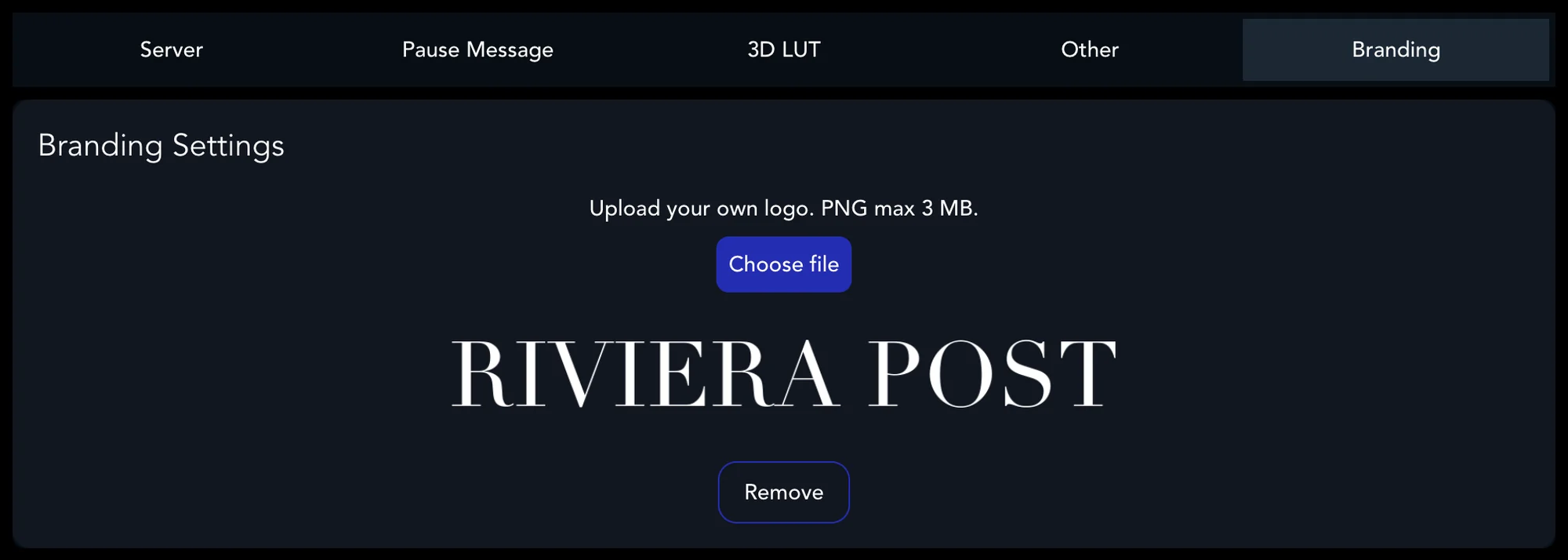
The logo replaces the Pixelview logo at the top of the web player.
Pause message
Viewers see the pause message when you pause the session: for breaks, a waiting room, source changes, private discussion, or the end of a session.
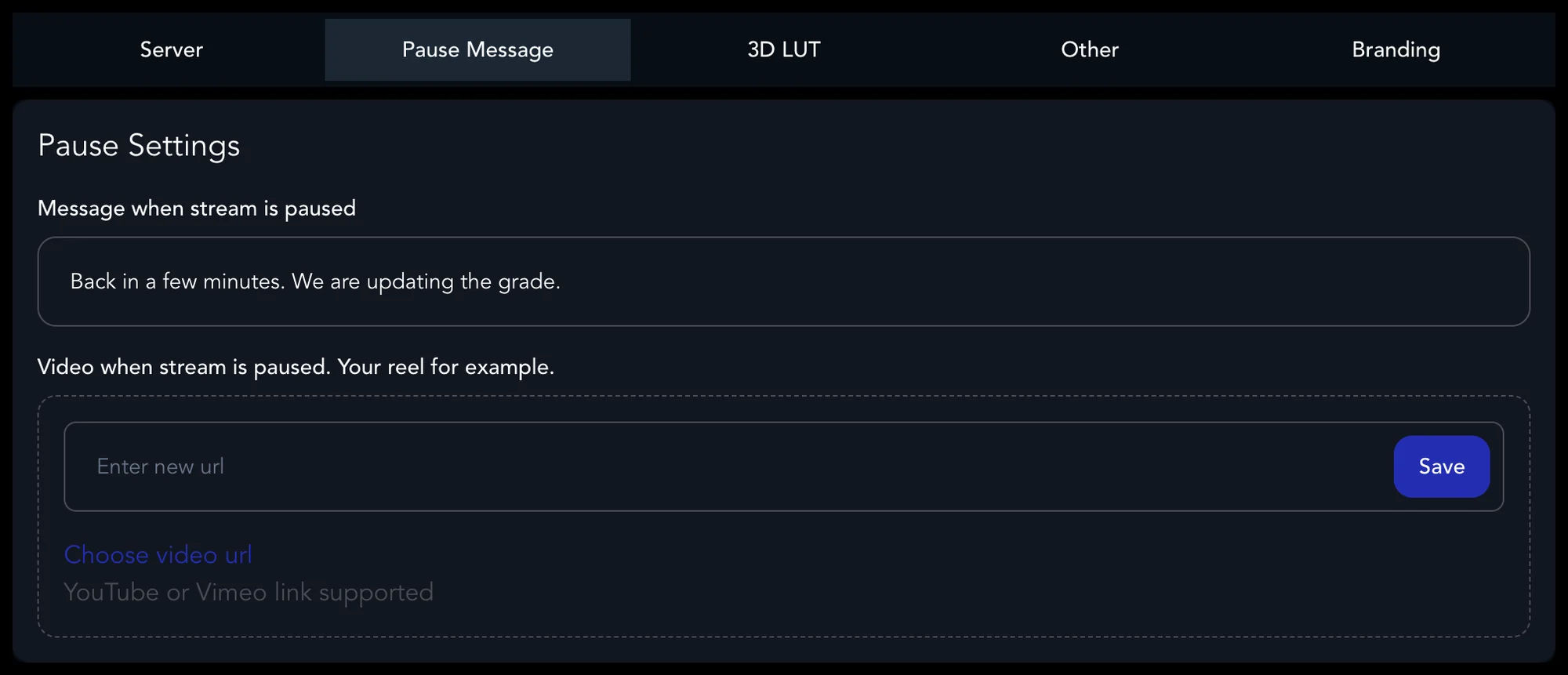
- In Admin, open Settings → Pause Message.
- Type the message in Message when stream is paused and click Save (it appears when you point at the field).
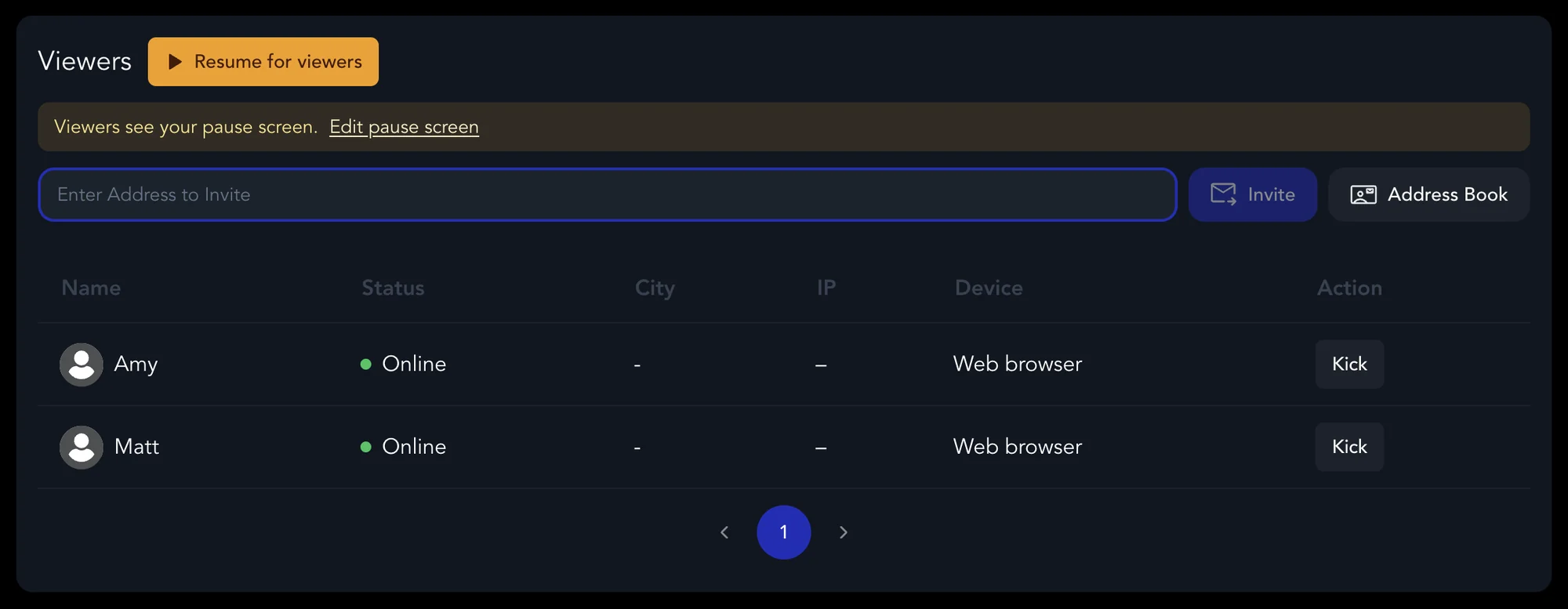
- On the Sessions page, click Pause for viewers. The button changes to Resume for viewers, and a banner confirms that viewers see the pause screen.
Viewers see your message in place of the picture:
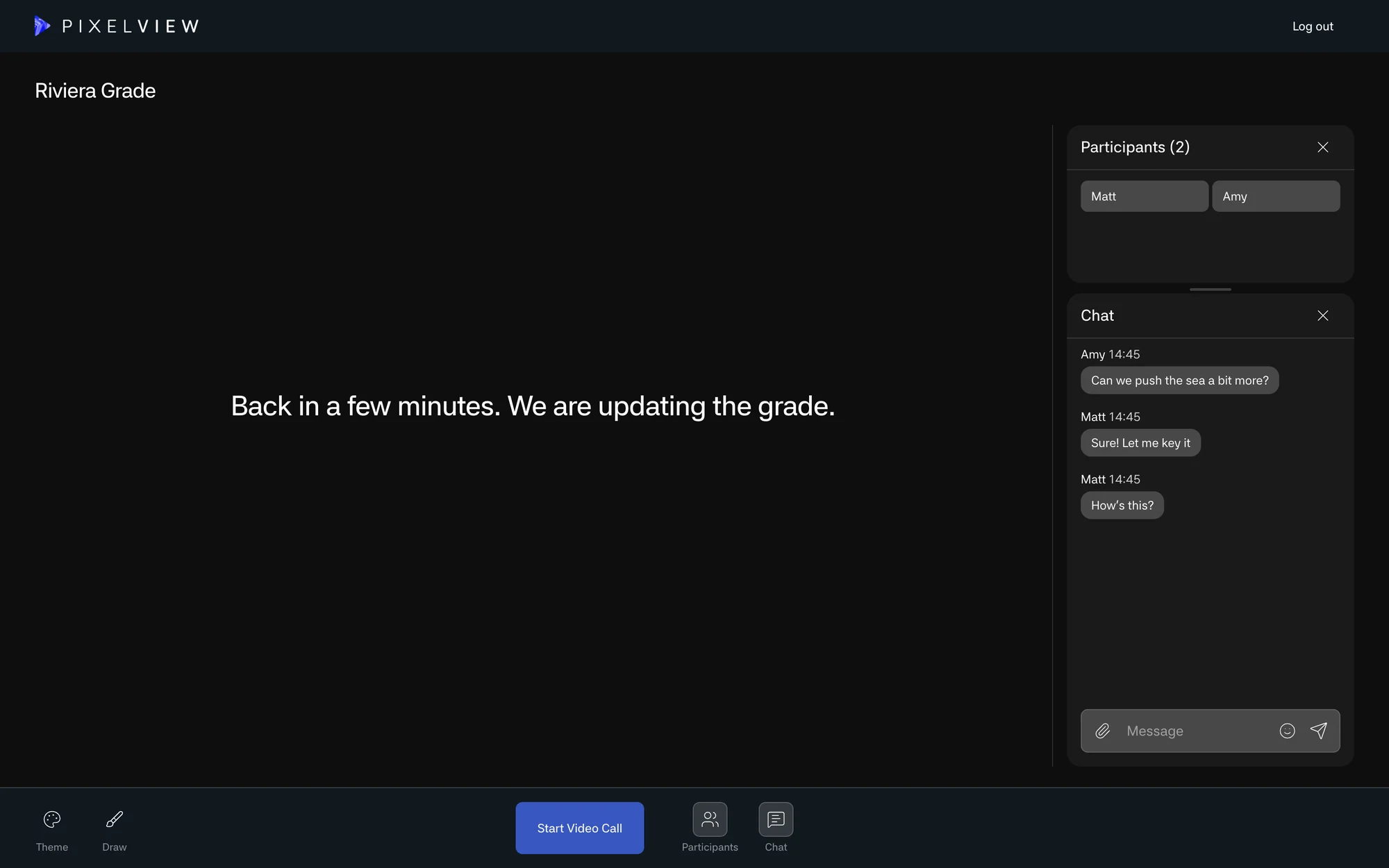
Resume only when the source and room are ready. Keep the message neutral for client sessions, for example:
The stream is paused. We will resume shortly.Thanks for joining. The next review starts at 3:00 PM.Please stand by while the room changes source.
Before a high-profile review, check that the pause screen appears correctly.
Pause reel or video
Pixelview can show a YouTube or Vimeo video during the pause, such as a facility reel or a holding screen. In Settings → Pause Message, paste the link under Video when stream is paused and click Save. Keep it short and appropriate for everyone invited.
Background
Browser viewers set the room background themselves with Theme → Room background, from black to white. To keep every viewer on gray, turn on Force gray background color in web player in Settings → Other.