
Session Access and Invites
Choose how viewers join a review, based on how fast, private, or controlled it needs to be. Viewers may be asked for their name when they join; it appears in chat, participant lists, and the Admin viewer list.
| Method | Best for | How it works |
|---|---|---|
| Link with password | Fast joining | Viewer opens one tokenized link. |
| Link without password | Safer sharing | Viewer opens the link and enters the password separately. |
| Email invite | Controlled access | Viewer receives a private invitation by email. |
| QR code | App and in-room setup | Viewer scans the code in Pixelview Player. |
| Stream ID + password | Manual app login | Viewer enters details in the iPhone, iPad, or Apple TV app. |
| Apple TV handoff | Screening rooms | iPhone or iPad authorizes Apple TV by scanning its QR code. |
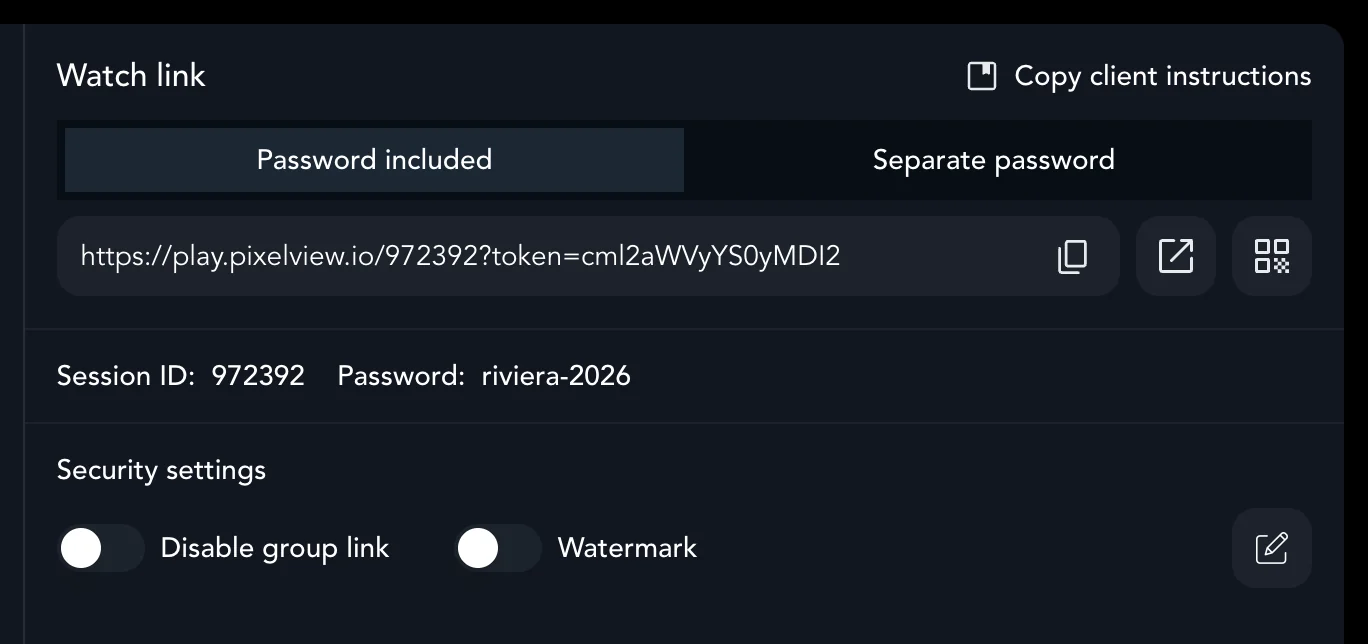
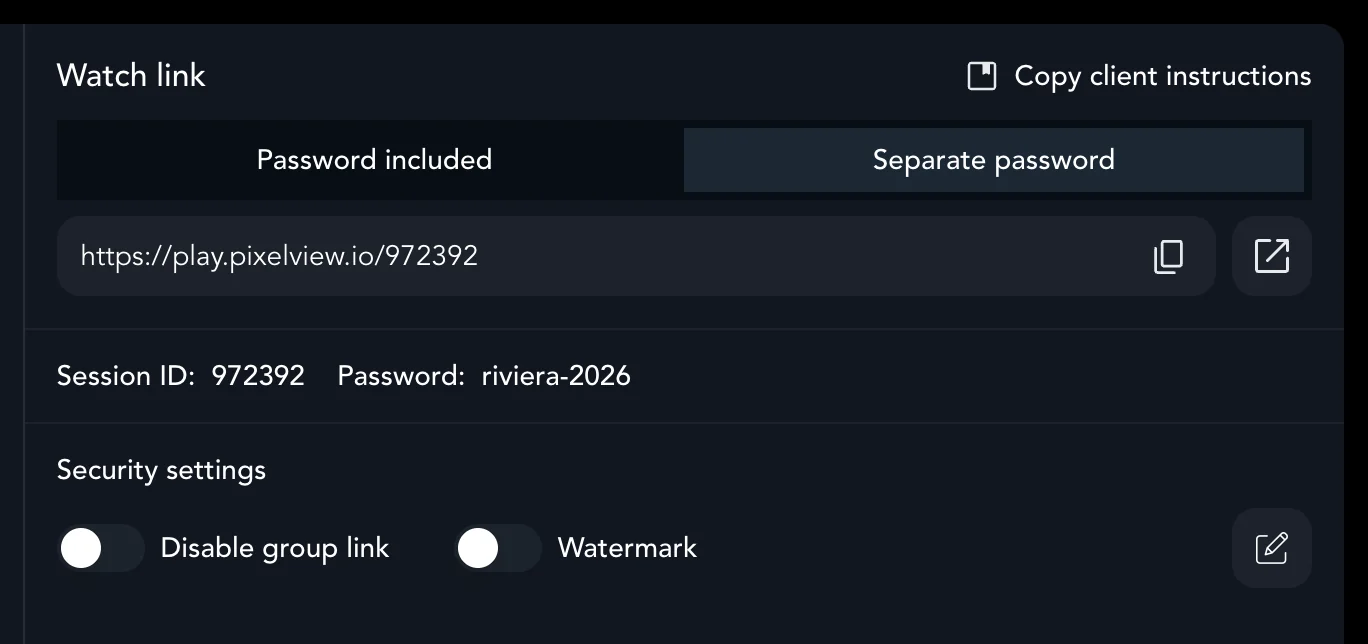
All access options are on the Sessions page in Admin, under Watch link.
Link with password
Select Password included and copy the link. This is the fastest way in, because viewers skip the password step. Anyone with the link may be able to open the session, so share it only with trusted viewers and keep it out of public or long-lived channels.
Link and separate password
- Select Separate password and copy the link. It has no password in it.
- Send the link by email.
- Send the password in a separate message or call.
- Viewers enter their name and the password.
Private email invites
Use these for named viewers whose access you can revoke.
- Open the active project in Admin.
- In the Viewers section, enter one or more email addresses in Enter Address to Invite.
- Click Invite.
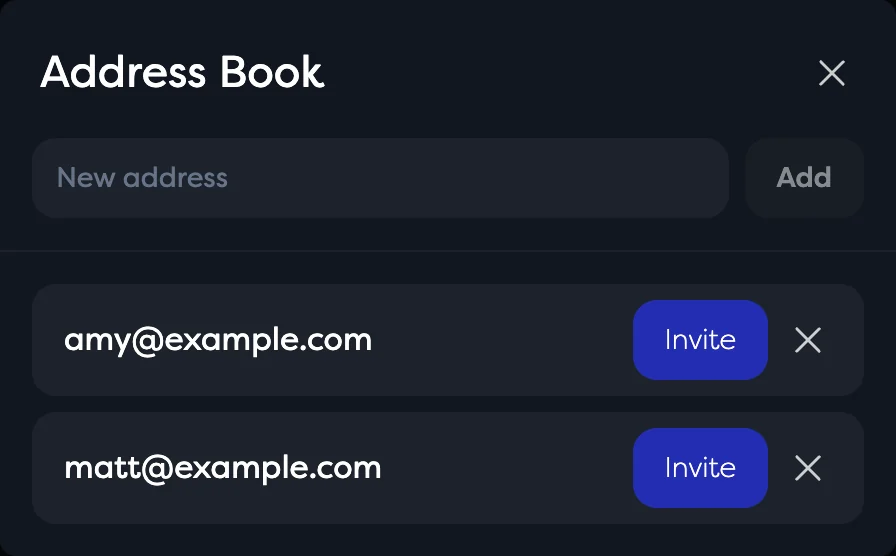
Frequently used addresses are saved in the Address Book, where you can add addresses and invite them with one click.
Disable group links
For confidential work, turn on Disable group link under Security settings and use private invites, so only invited viewers can join. To make this the default for every project, turn on Always disable group links in Settings → Other.
QR codes and app login
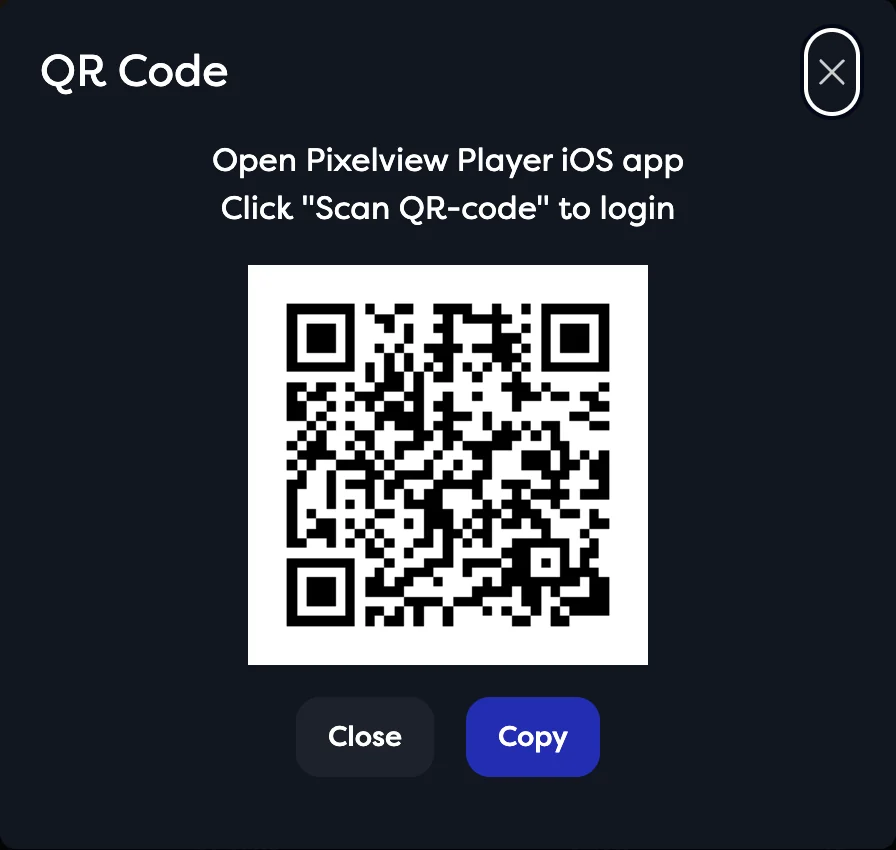
Click the QR code button next to the watch link to show a code that viewers scan in the Pixelview Player app with Scan QR-code.
In the Pixelview Player apps, viewers can:
- scan the QR code in Admin from an iPhone or iPad,
- open a Pixelview link that adds the stream,
- enter the Stream ID and password manually,
- authorize an Apple TV by scanning its QR code from an iPhone or iPad.
Revoking access
In the Admin viewer list, Kick an online viewer or Revoke an offline or private invite. Delete or expire the project when access should end, and create a new project and password for each client or review version. See Viewer Management.