
3D LUT Calibration
A 3D LUT applies a calibration or review transform to what viewers see, for example to match a facility display or a controlled client device. LUT support depends on your plan and on the viewer's browser or app.
Pixelview accepts .cube files, 17-point or 33-point, up to 10 MB.
Apply a LUT
- Prepare the
.cubeLUT for the display it is meant for. Name it by purpose and version, such asclient-room-sdr-review-v03.cube, and keep a copy of the original. - In Admin, open Settings → 3D LUT.
- Click Upload LUT, or choose an uploaded LUT under Active LUT.
- Turn on Enable.
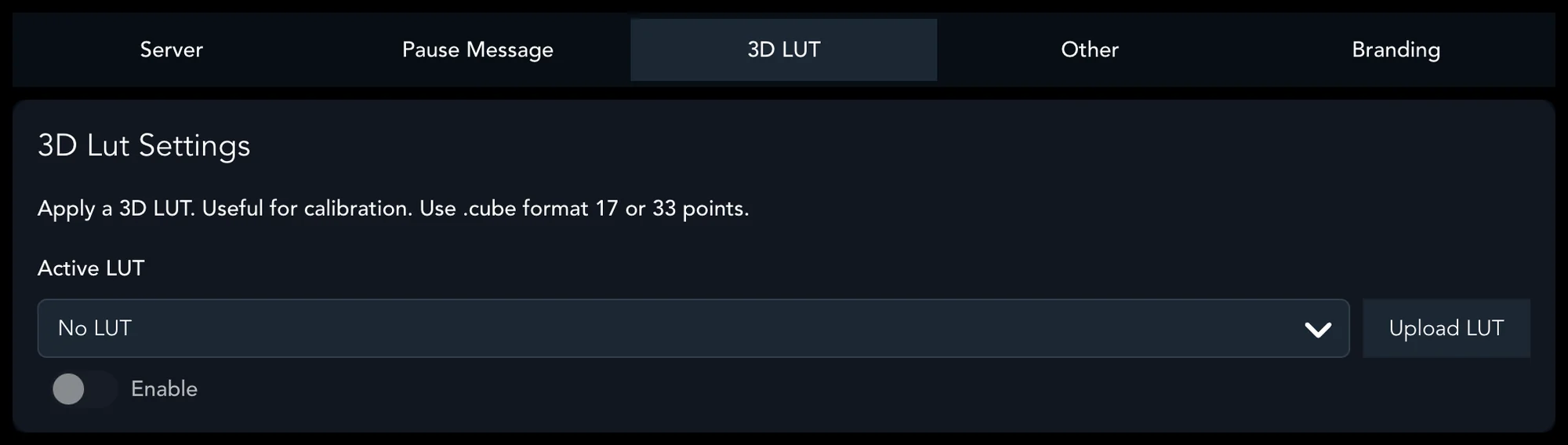
- Check that the LUT applies on the browser or app your viewers will use.
- Test on the same device, browser or app the client will use before the review.
A LUT does not fix a wrong source, color profile, display or room setup.
If the picture looks wrong
- Disable the LUT and compare.
- Check the Input Color Profile in Admin. See Color Settings.
- Check the source output and the Pixelview Desktop, OBS or capture settings.
- Confirm the LUT was built for the same input and output.
- Test a known-good Rec.709 SDR setup before going back to HDR or custom transforms.