
Color Settings
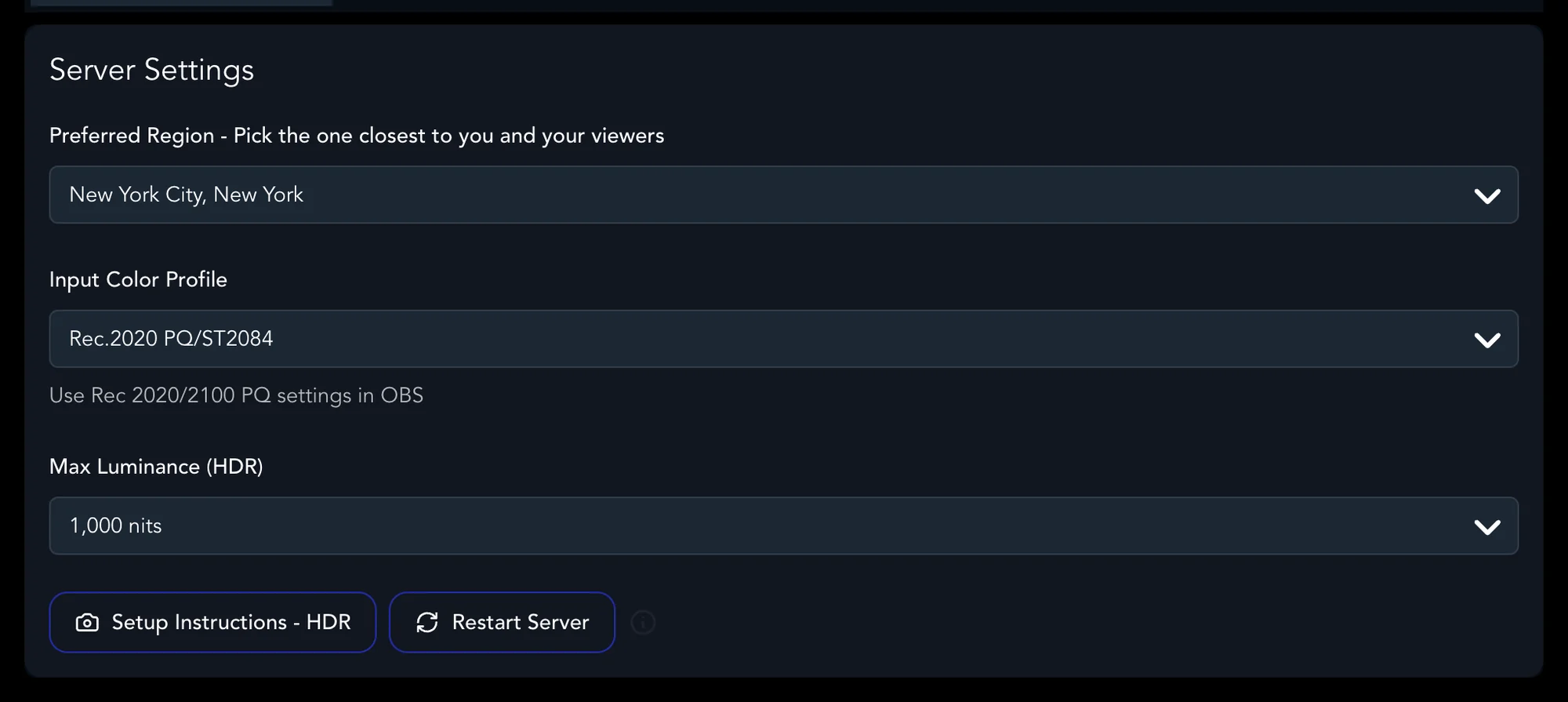
The Input Color Profile tells Pixelview what color space your picture is in. Set it to match your grading system's output before the session, so every viewer sees the picture as you graded it.
Set the color profile
- In Admin, click Settings in the top bar and open the Server tab.
- Set Input Color Profile to match your source.
- For an HDR profile, also set Max Luminance (HDR) to the peak brightness of your grade, for example 1,000 nits.
| Input Color Profile | Use it for |
|---|---|
| Rec.709 | SDR. The right choice for most reviews. |
| Rec.2020 PQ/ST2084 | HDR (beta), PQ |
| Rec.2020 HLG | HDR (beta), HLG |
| P3-D65 PQ/ST2084 — sending with Pixelview Desktop | HDR (beta), a P3-D65 PQ grade sent from Pixelview Desktop |
| P3-D65 PQ/ST2084 — sending with OBS | HDR (beta), a P3-D65 PQ grade sent from OBS Studio |
Match your streaming app
Pixelview Desktop follows the profile automatically: it sends SDR for Rec.709 and HDR for the PQ and HLG profiles. Check that the Colour line in the app shows the profile you set. See Sending HDR.
OBS Studio has to be set to match in Settings → Advanced:
| Input Color Profile | OBS Color Space |
|---|---|
| Rec.709 | Rec. 709 |
| Rec.2020 PQ/ST2084, or P3-D65 PQ/ST2084 — sending with OBS | Rec. 2100 (PQ) |
| Rec.2020 HLG | Rec. 2100 (HLG) |
See OBS Studio Setup and HDR with OBS Studio.
Where viewers see HDR
Not on Apple TV
HDR is not available on Apple TV. An HDR session plays there in SDR, tone-mapped.
| Viewer | HDR session |
|---|---|
| Chrome and Edge | PQ HDR on an HDR display |
| iPhone and iPad apps | PQ and HLG HDR on supported devices |
| Apple TV | Not available. Plays in SDR, tone-mapped |
| Safari | SDR |
| Pixelview Desktop receiver | HDR on SDI, see SDI playout |
Test the whole chain from your source to the viewer's device before an HDR session. If the picture looks wrong, check the source output first, then the color profile here, then the app settings.
For a calibration transform on a specific display, see 3D LUT Calibration.